> ## Documentation Index
> Fetch the complete documentation index at: https://docs.apiany.ai/llms.txt
> Use this file to discover all available pages before exploring further.
# Chatbox-Integration
> APIAny.AI API-Key, Base-URL und empfohlene Modelle in Chatbox konfigurieren.
[Chatbox](https://chatboxai.app/) lässt sich über OpenAI-kompatible Einstellungen mit APIAny.AI verbinden. Nach der Einrichtung kannst du Chat-, Reasoning-, Übersetzungs- und multimodale Modelle aus demselben Client nutzen.
## Voraussetzungen
* Chatbox ist installiert.
* Du hast in der [APIAny.AI-Konsole](https://apiany.ai/de/dashboard/api-keys) einen API-Key erstellt.
* Du hast eine Modell-ID ausgewählt, zum Beispiel `gpt-5.4-mini` oder `gpt-4o-mini`.
## Konfigurationswerte
| Feld | Wert |
| --------------- | ------------------------------------------------------- |
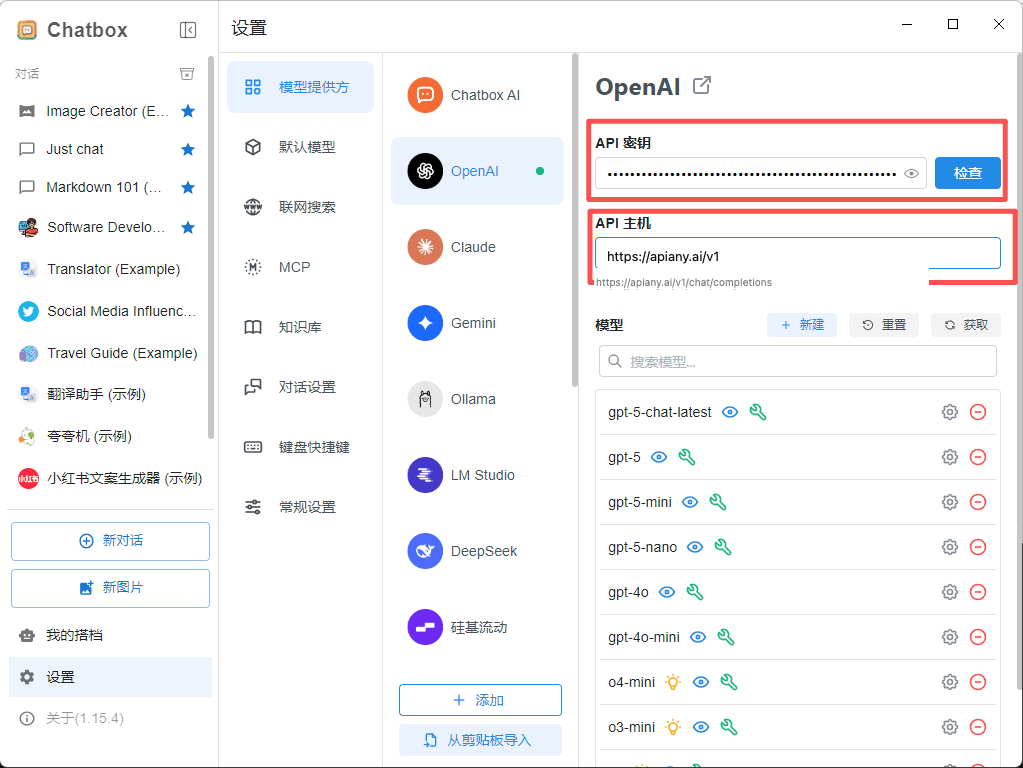
| OpenAI API Key | Dein APIAny.AI API-Key |
| OpenAI API Host | `https://apiany.ai/v1` |
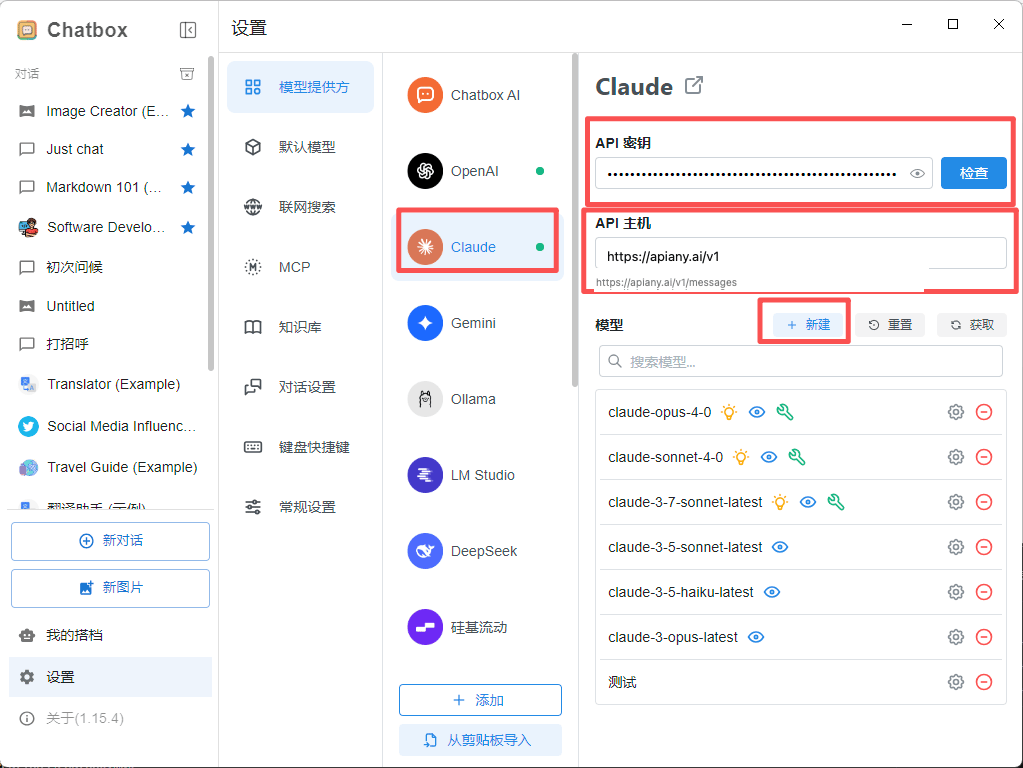
| Claude API Host | `https://apiany.ai/v1` |
| Gemini API Host | `https://apiany.ai` |
| Modell | `gpt-5.4-mini`, `claude-sonnet-4-6`, `gemini-3.5-flash` |
## Einrichtung
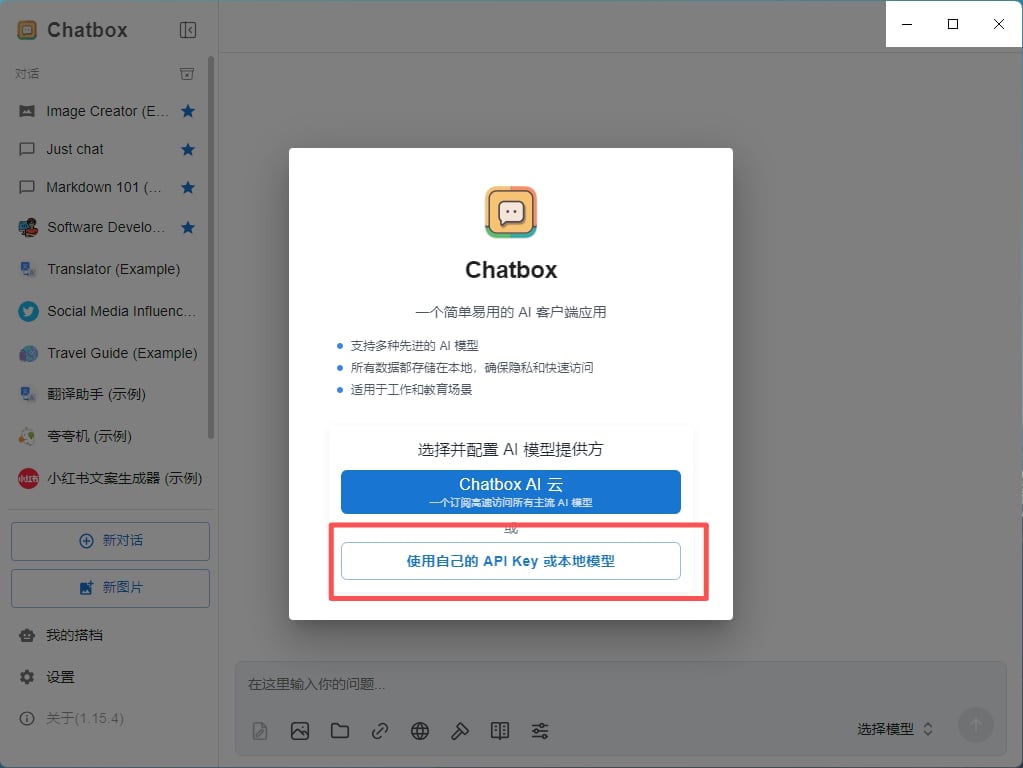
1. Öffne Chatbox und gehe zu den Einstellungen.
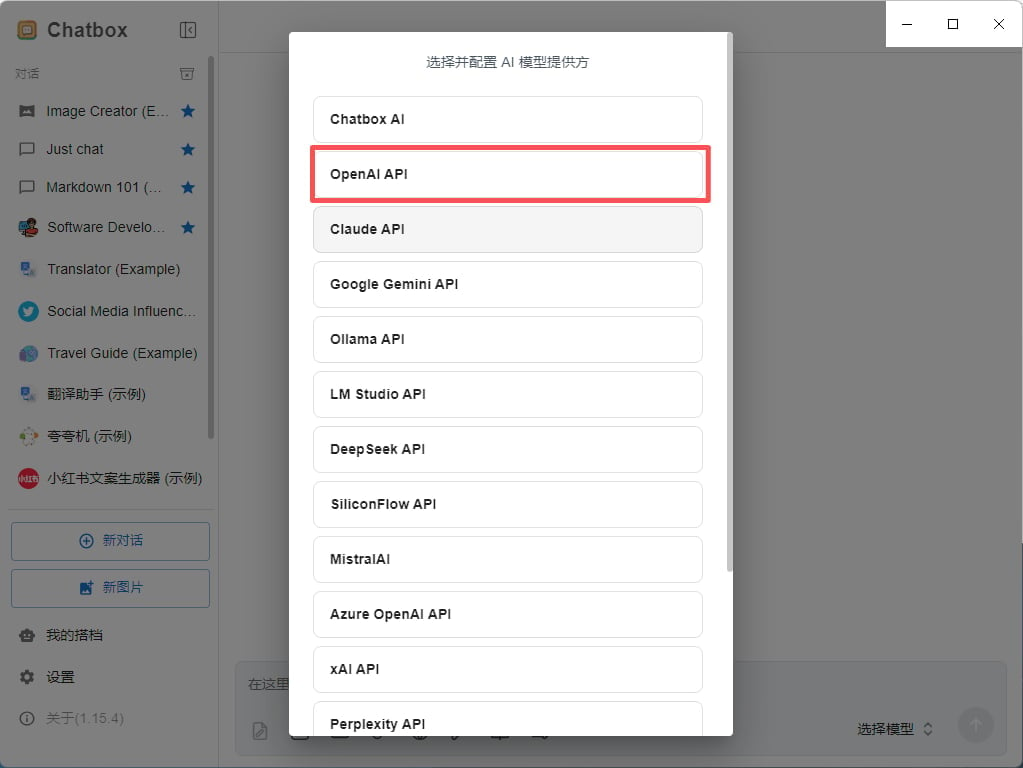
2. Wähle die Konfigurationsseite für OpenAI API, Claude API oder Gemini API.
3. Gib den API-Key, den API-Host und die Modell-ID ein.
4. Speichere die Konfiguration und sende eine Testnachricht.
## Empfohlene Modelle
| Modell-ID | Am besten geeignet für |
| ------------------- | ------------------------------------------------------------------------------------------- |
| `gpt-5.5` | Beste erste Wahl für komplexes Reasoning, Coding und produktive Workflows. |
| `gpt-5.4` | Starkes Allzweckmodell für anspruchsvolle Chat- und Agent-Aufgaben. |
| `gpt-5.4-mini` | Ausgewogenes Verhältnis aus Geschwindigkeit, Qualität und Kosten für den täglichen Einsatz. |
| `gpt-4o-mini` | Schnelle und günstige Wahl für einfache Chats, Übersetzungen und leichtgewichtige Aufgaben. |
| `claude-sonnet-4-6` | Claude-kompatible Modell-ID für längere Texte und Coding-Workflows. |
| `gemini-3.5-flash` | Gemini-kompatible Modell-ID für schnelle multimodale Nutzung. |
## Screenshots der Einrichtung
Die folgenden Screenshots zeigen die wichtigsten Konfigurationsbildschirme in Chatbox. API-Namen und Endpunkte wurden für APIAny.AI angepasst.
### Schritt 1
 ### Schritt 2
 ### Schritt 3
 ### Schritt 4
 ### Schritt 5
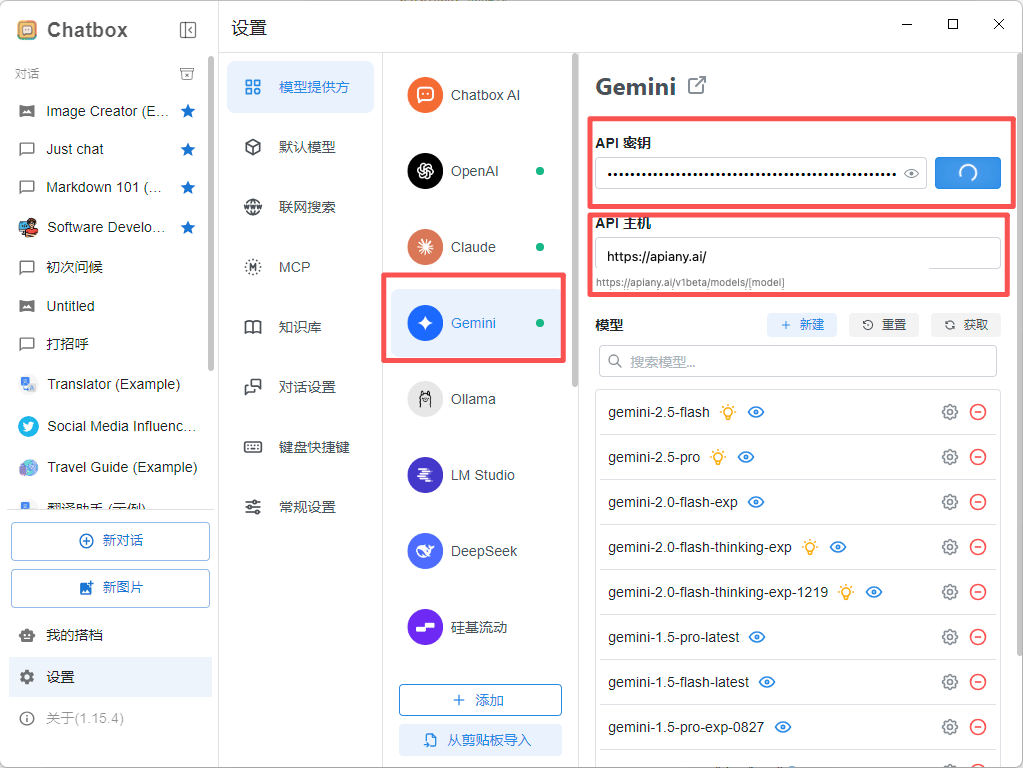 ### Schritt 6
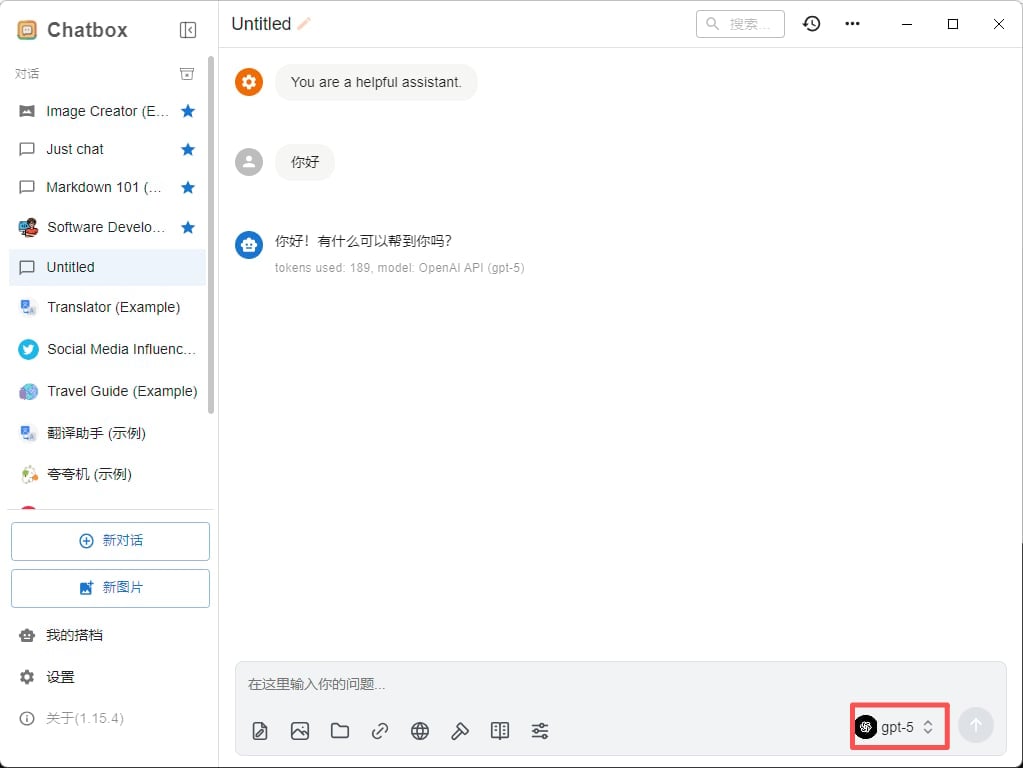 ## Fehlerbehebung
### 401- oder Authentifizierungsfehler
Stelle sicher, dass der API-Key vollständig kopiert wurde, keine zusätzlichen Leerzeichen enthält und in der APIAny.AI-Konsole aktiviert ist.
### Das Modell erscheint nicht in der App
Gib die Modell-ID manuell ein und prüfe, ob sie im [Modellkatalog](/de/models/chat-models) verfügbar ist. Manche Tools rufen Modelllisten nicht automatisch ab.
### Welche Base-URL soll ich verwenden?
OpenAI-kompatible Einstellungen verwenden in der Regel `https://apiany.ai/v1`; Claude-kompatible Einstellungen verwenden in der Regel `https://apiany.ai`; Tools, die einen vollständigen Endpunkt erwarten, verwenden `https://apiany.ai/v1/chat/completions`.
## Fehlerbehebung
### 401- oder Authentifizierungsfehler
Stelle sicher, dass der API-Key vollständig kopiert wurde, keine zusätzlichen Leerzeichen enthält und in der APIAny.AI-Konsole aktiviert ist.
### Das Modell erscheint nicht in der App
Gib die Modell-ID manuell ein und prüfe, ob sie im [Modellkatalog](/de/models/chat-models) verfügbar ist. Manche Tools rufen Modelllisten nicht automatisch ab.
### Welche Base-URL soll ich verwenden?
OpenAI-kompatible Einstellungen verwenden in der Regel `https://apiany.ai/v1`; Claude-kompatible Einstellungen verwenden in der Regel `https://apiany.ai`; Tools, die einen vollständigen Endpunkt erwarten, verwenden `https://apiany.ai/v1/chat/completions`.