> ## Documentation Index
> Fetch the complete documentation index at: https://docs.apiany.ai/llms.txt
> Use this file to discover all available pages before exploring further.
# Using in Cline
> Configure APIAny.AI API keys, base URLs, and recommended models in Cline.
[Cline](https://cline.bot/) can connect to APIAny.AI through OpenAI-compatible settings. After setup, you can use chat, reasoning, translation, and multimodal models from the same client.
## Prerequisites
* Cline is installed.
* You have created an API key in the [APIAny.AI dashboard](https://apiany.ai/dashboard/api-keys).
* You have selected a model ID, such as `gpt-5.4-mini` or `gpt-4o-mini`.
## Configuration values
| Field | Value |
| -------- | ---------------------- |
| API mode | `OpenAI Compatible` |
| Base URL | `https://apiany.ai/v1` |
| API Key | Your APIAny.AI API key |
| Model | `gpt-5.4` |
## Setup
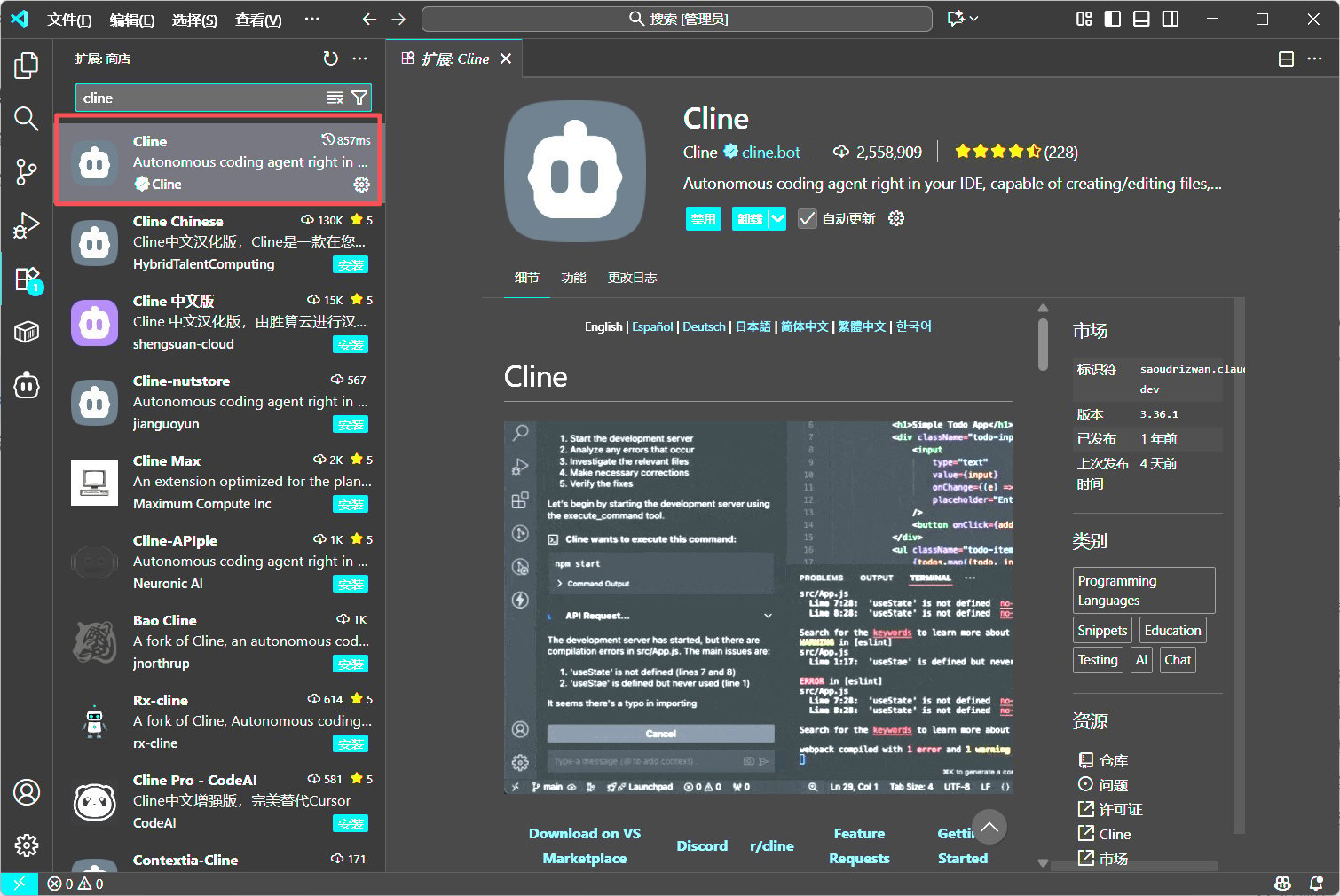
1. Install and open Cline in VS Code.
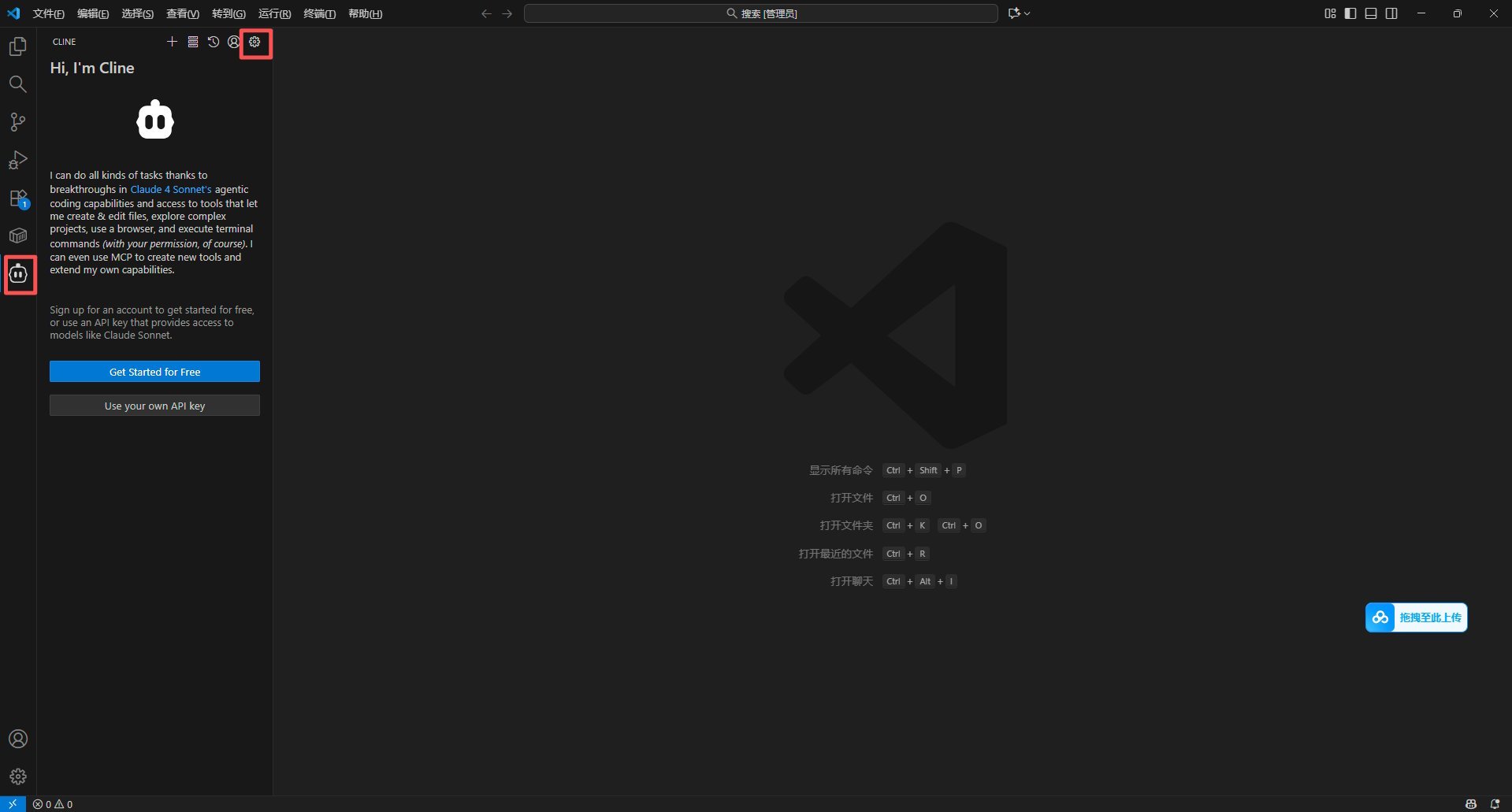
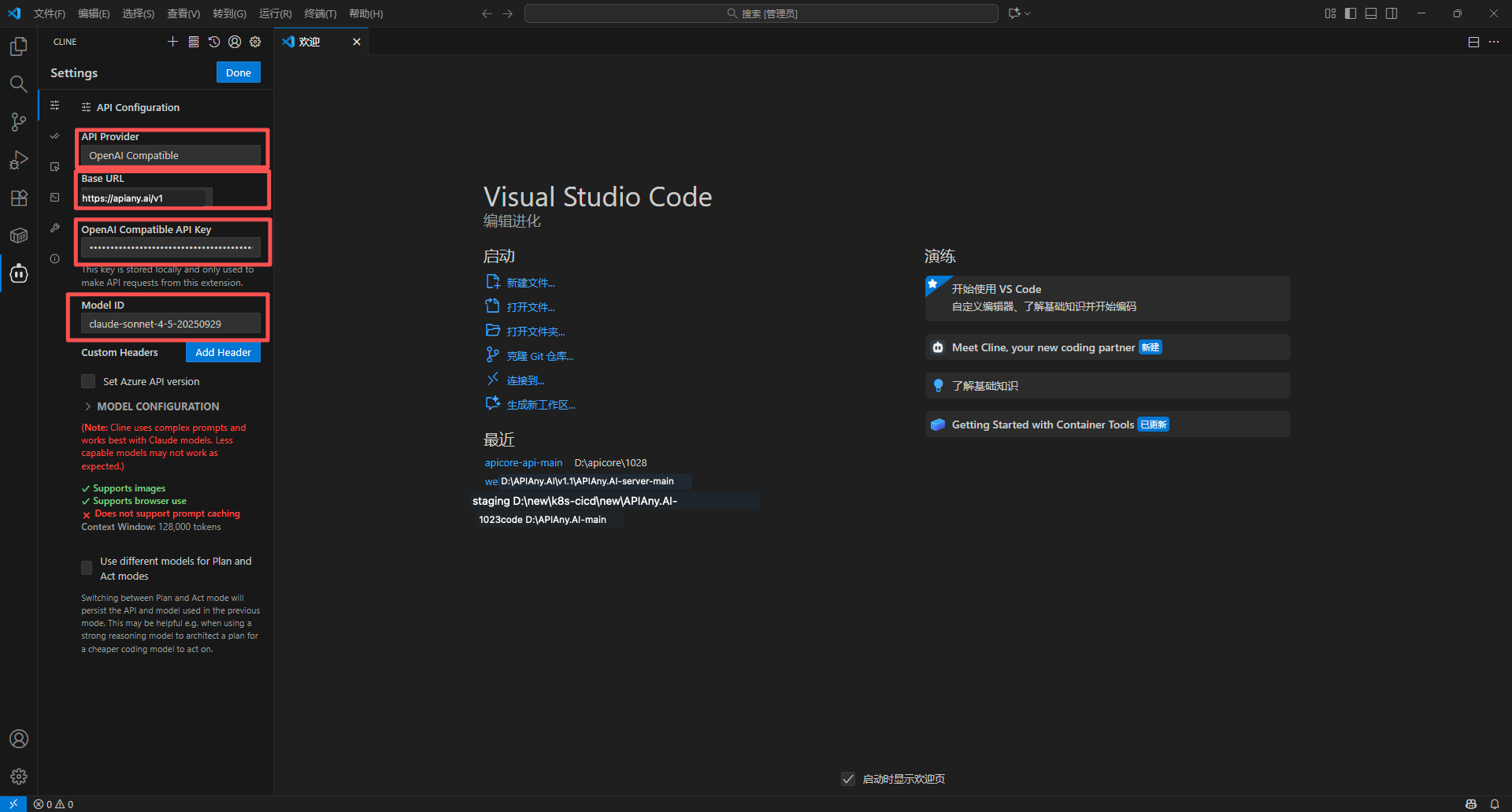
2. Open Cline settings and choose OpenAI Compatible.
3. Enter the Base URL, API key, and model ID.
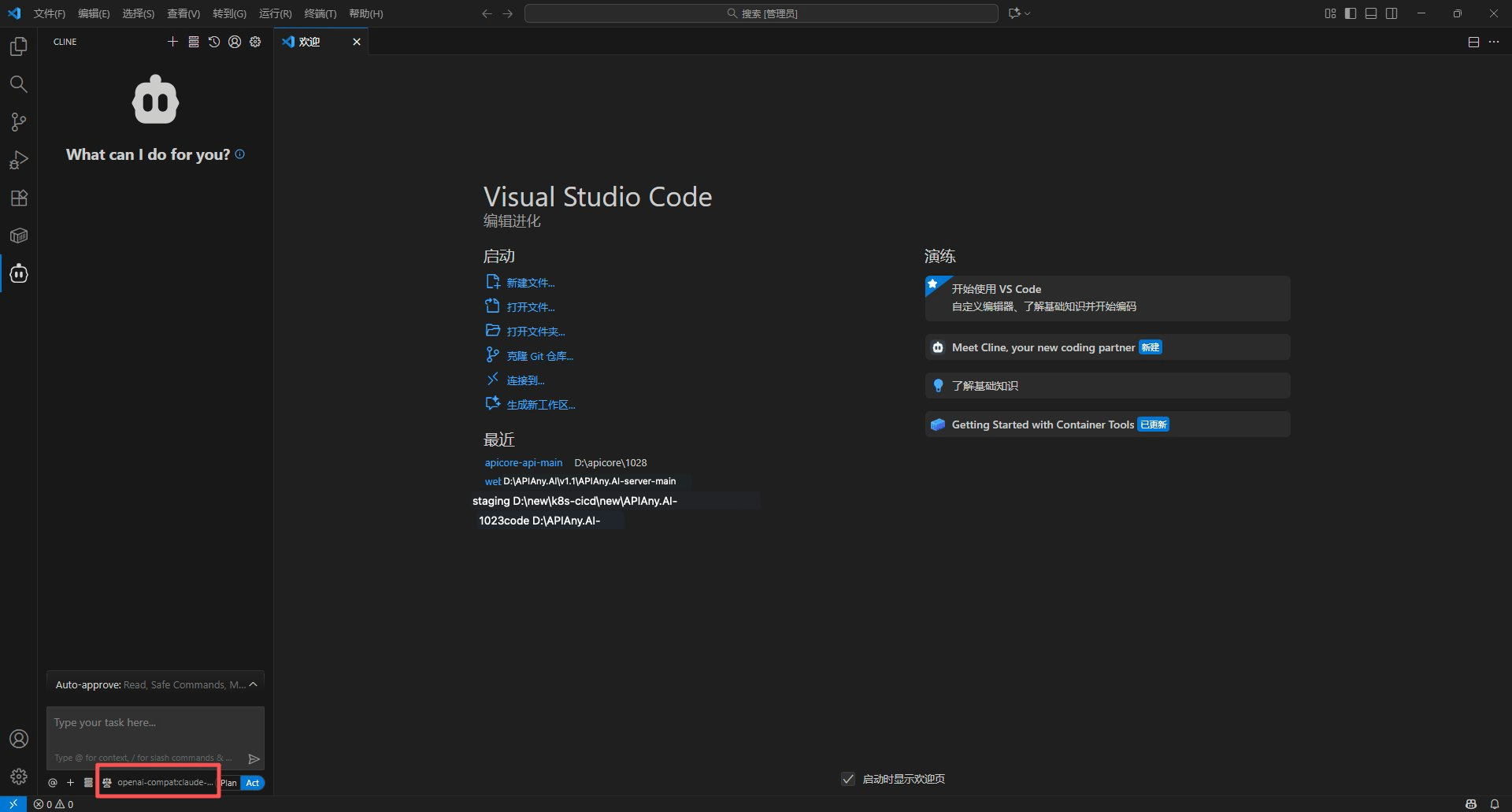
4. Save and ask Cline to run a small coding task to verify the connection.
## Recommended models
| Model ID | Best for |
| ------------------- | ------------------------------------------------------------------------------- |
| `gpt-5.5` | Best first choice for complex reasoning, coding, and production workflows. |
| `gpt-5.4` | Strong general-purpose model for advanced chat and agent tasks. |
| `gpt-5.4-mini` | Balanced speed, quality, and cost for everyday usage. |
| `gpt-4o-mini` | Fast and economical choice for simple chat, translation, and lightweight tasks. |
| `claude-sonnet-4-6` | Claude-compatible model ID for long-form writing and coding workflows. |
| `gemini-3.5-flash` | Gemini-compatible model ID for fast multimodal usage. |
## Walkthrough screenshots
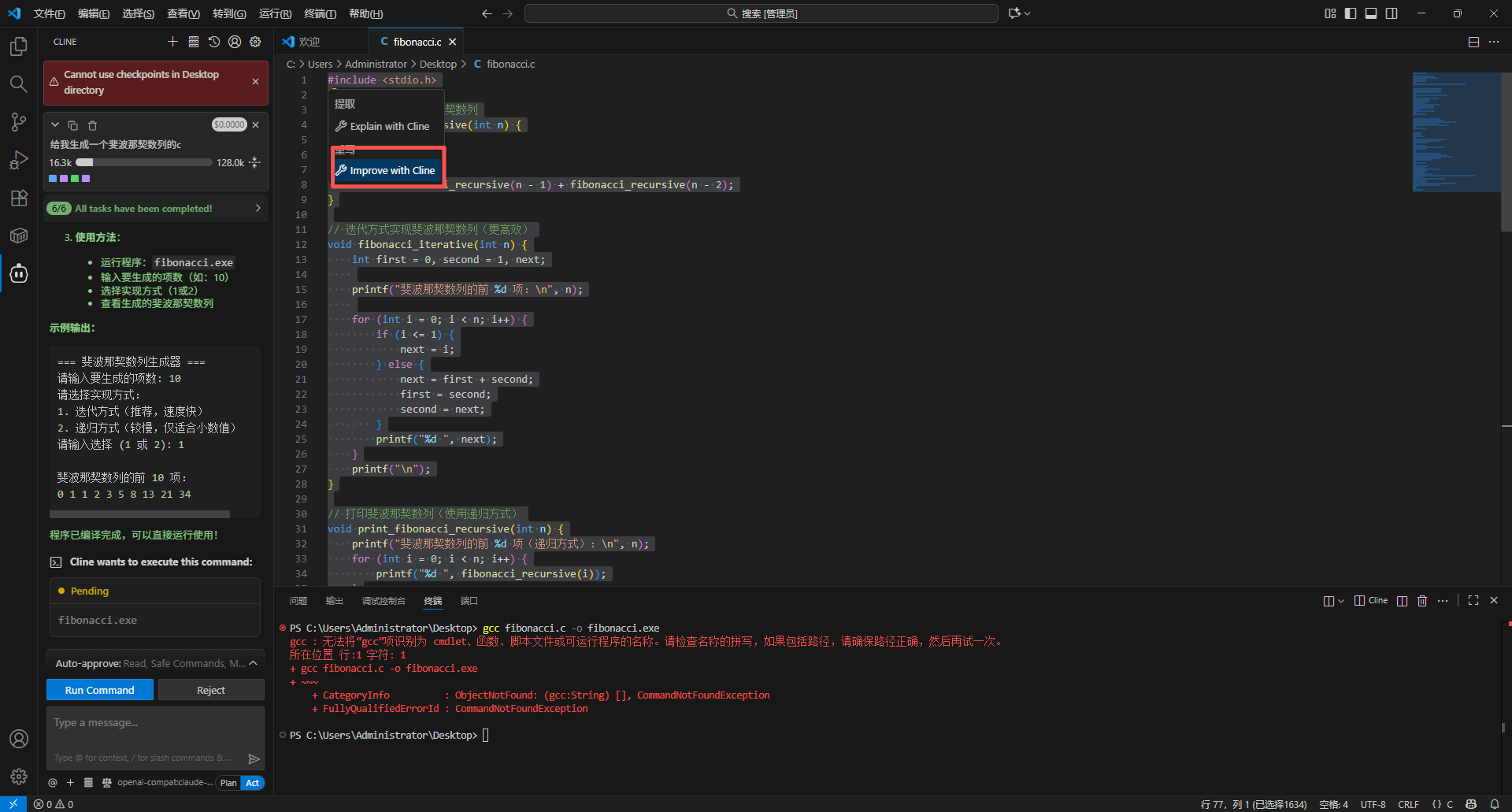
The screenshots below show the key configuration screens in Cline. API names and endpoints have been adjusted for APIAny.AI.
### Step 1
 ### Step 2
 ### Step 3
 ### Step 4
 ### Step 5
 ## Troubleshooting
### 401 or authentication errors
Make sure the API key is copied completely, has no extra spaces, and is enabled in the APIAny.AI dashboard.
### The model does not appear in the app
Enter the model ID manually and confirm it is available in the [model catalog](/models/chat-models). Some tools do not fetch model lists automatically.
### Which Base URL should I use?
OpenAI-compatible settings usually use `https://apiany.ai/v1`; Claude-compatible settings usually use `https://apiany.ai`; tools that ask for a full endpoint use `https://apiany.ai/v1/chat/completions`.
## Troubleshooting
### 401 or authentication errors
Make sure the API key is copied completely, has no extra spaces, and is enabled in the APIAny.AI dashboard.
### The model does not appear in the app
Enter the model ID manually and confirm it is available in the [model catalog](/models/chat-models). Some tools do not fetch model lists automatically.
### Which Base URL should I use?
OpenAI-compatible settings usually use `https://apiany.ai/v1`; Claude-compatible settings usually use `https://apiany.ai`; tools that ask for a full endpoint use `https://apiany.ai/v1/chat/completions`.