> ## Documentation Index
> Fetch the complete documentation index at: https://docs.apiany.ai/llms.txt
> Use this file to discover all available pages before exploring further.

# Using in Dify

> Configure APIAny.AI API keys, base URLs, and recommended models in Dify.

[Dify](https://dify.ai/) can connect to APIAny.AI through OpenAI-compatible settings. After setup, you can use chat, reasoning, translation, and multimodal models from the same client.

## Prerequisites

* Dify is installed.
* You have created an API key in the [APIAny.AI dashboard](https://apiany.ai/dashboard/api-keys).
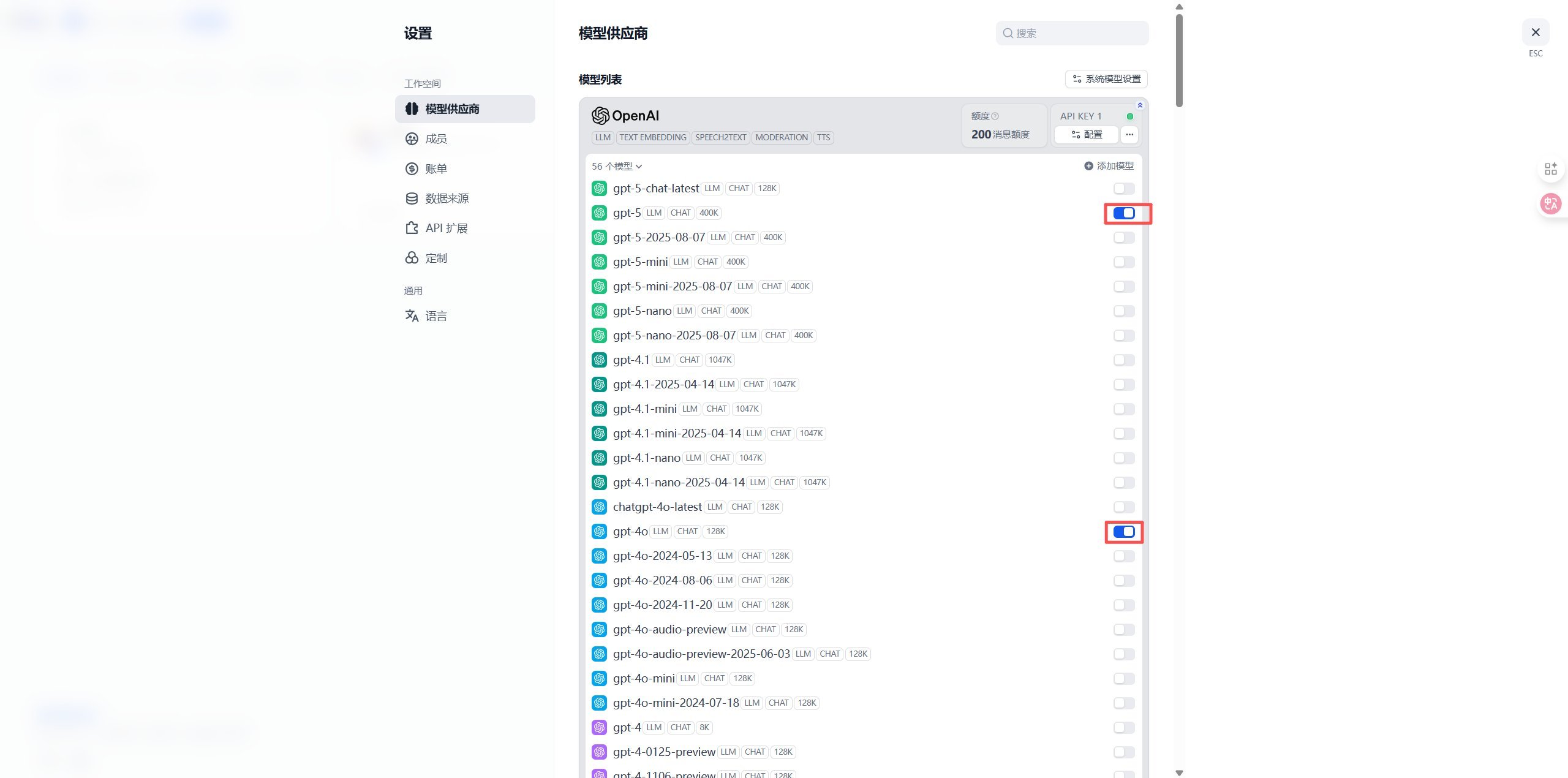
* You have selected a model ID, such as `gpt-5.4-mini` or `gpt-4o-mini`.

## Configuration values

| Field        | Value                   |
| ------------ | ----------------------- |
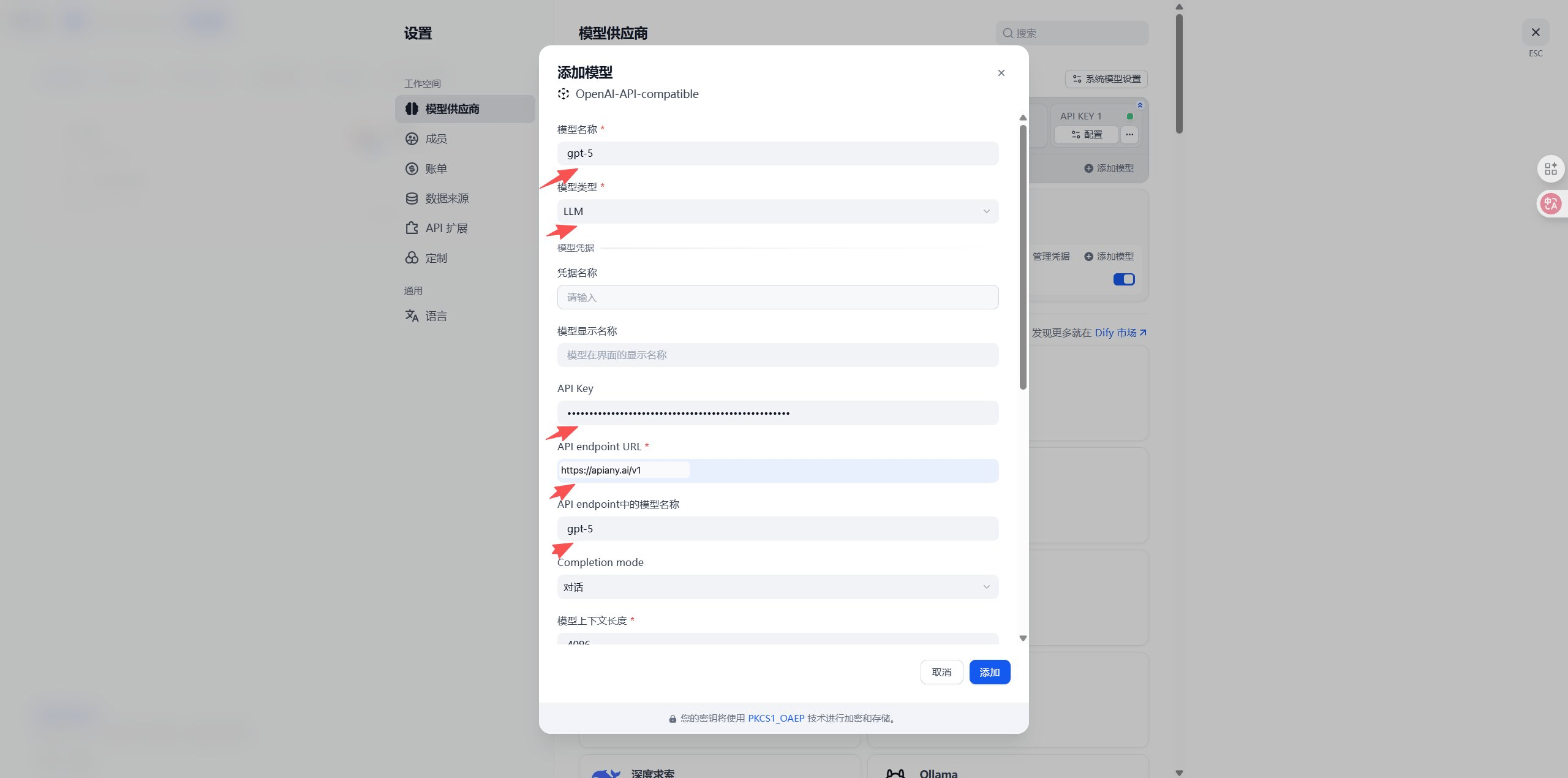
| Model type   | `OpenAI-API-compatible` |
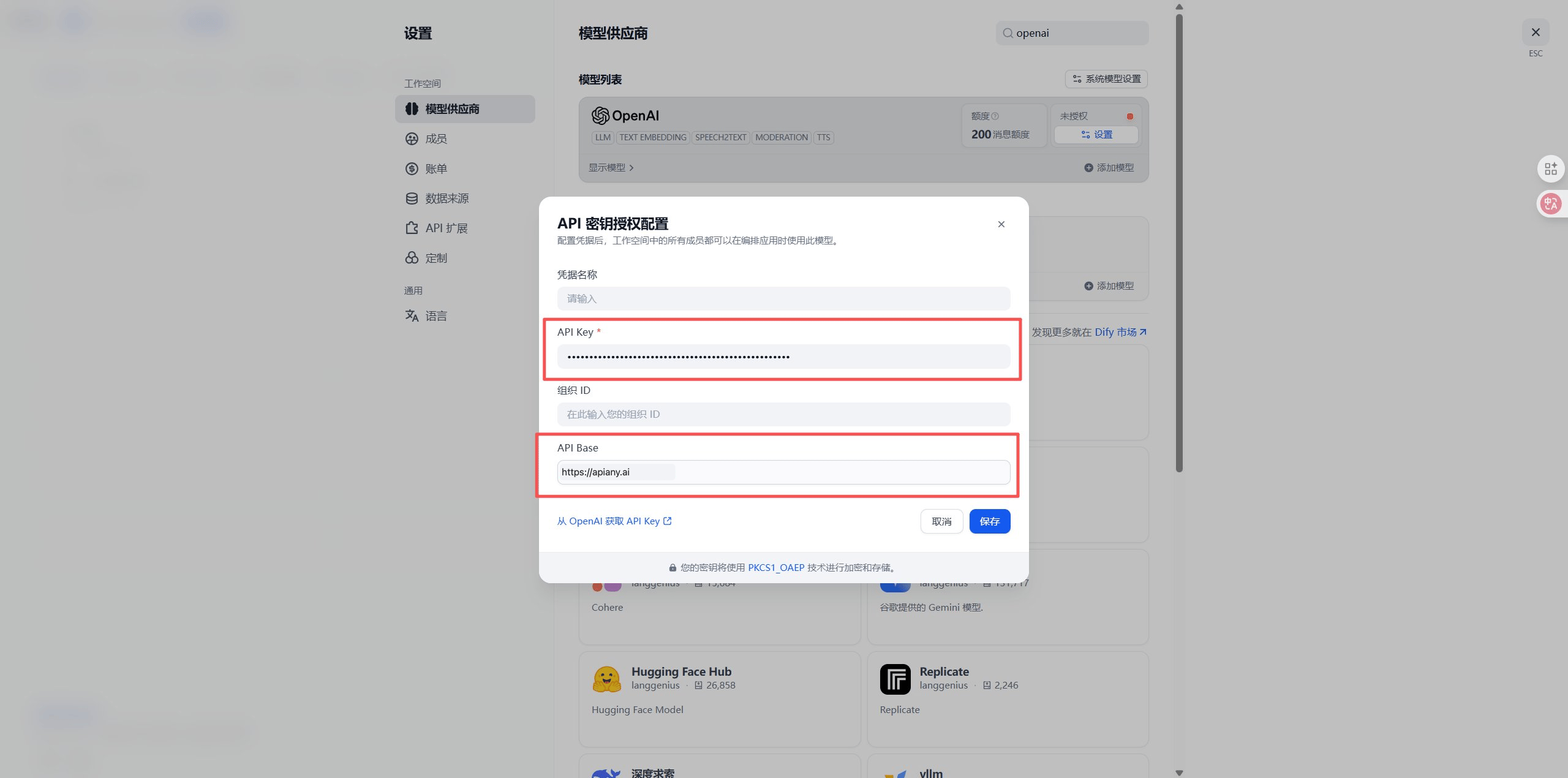
| API endpoint | `https://apiany.ai/v1`  |
| API Key      | Your APIAny.AI API key  |
| Model        | `gpt-5.4-mini`          |

## Setup

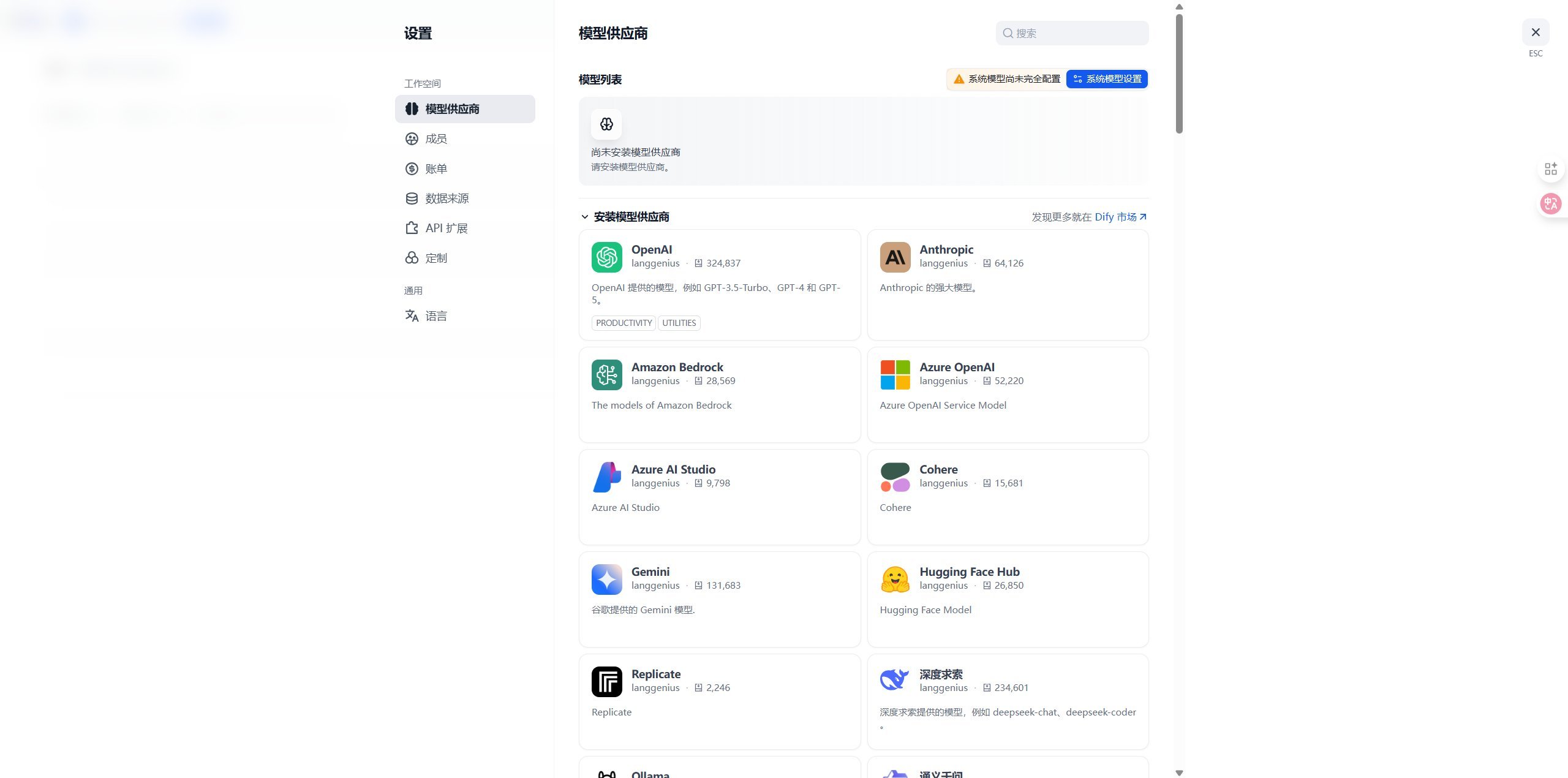
1. Open model settings in your Dify workspace.
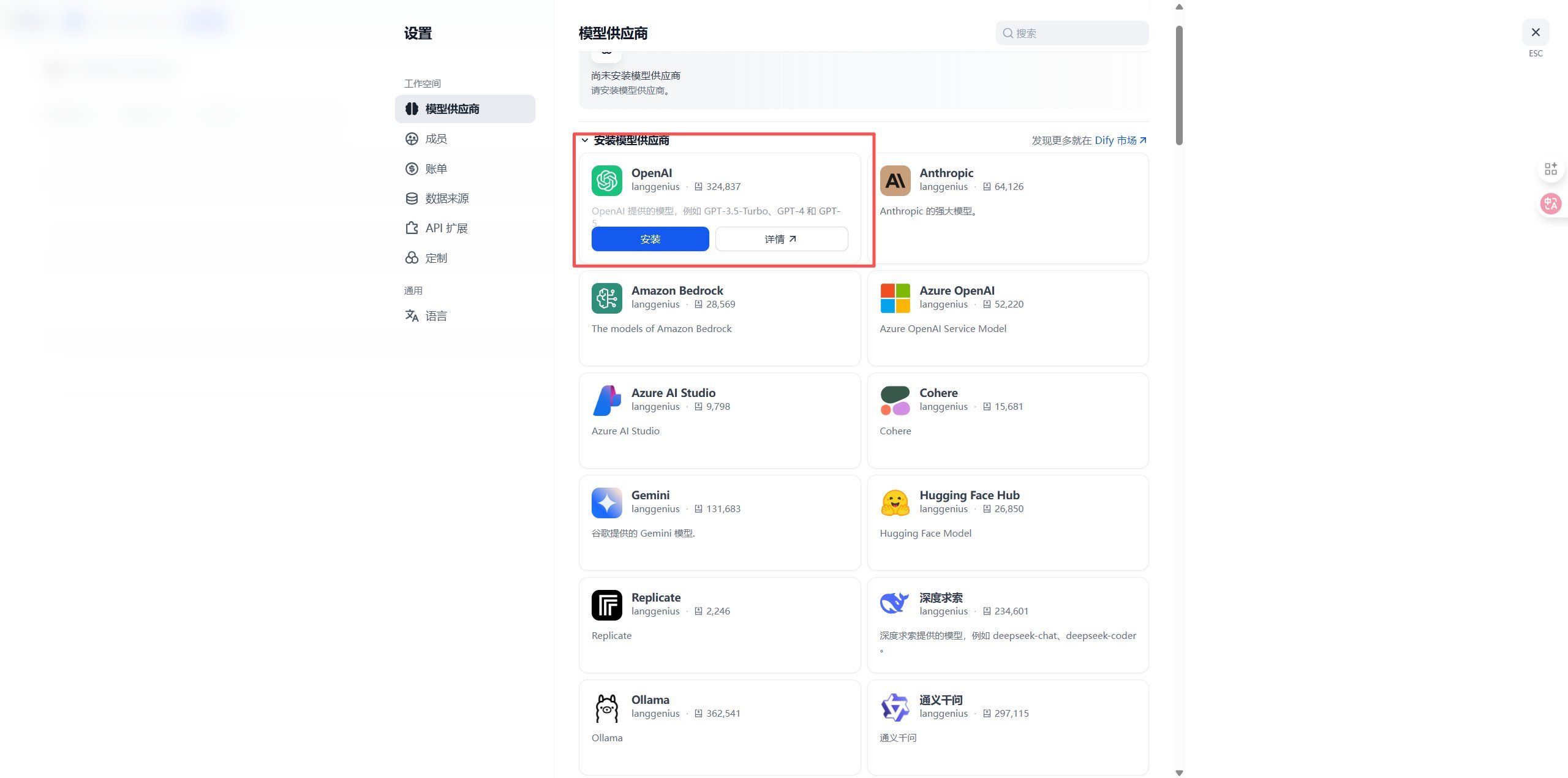
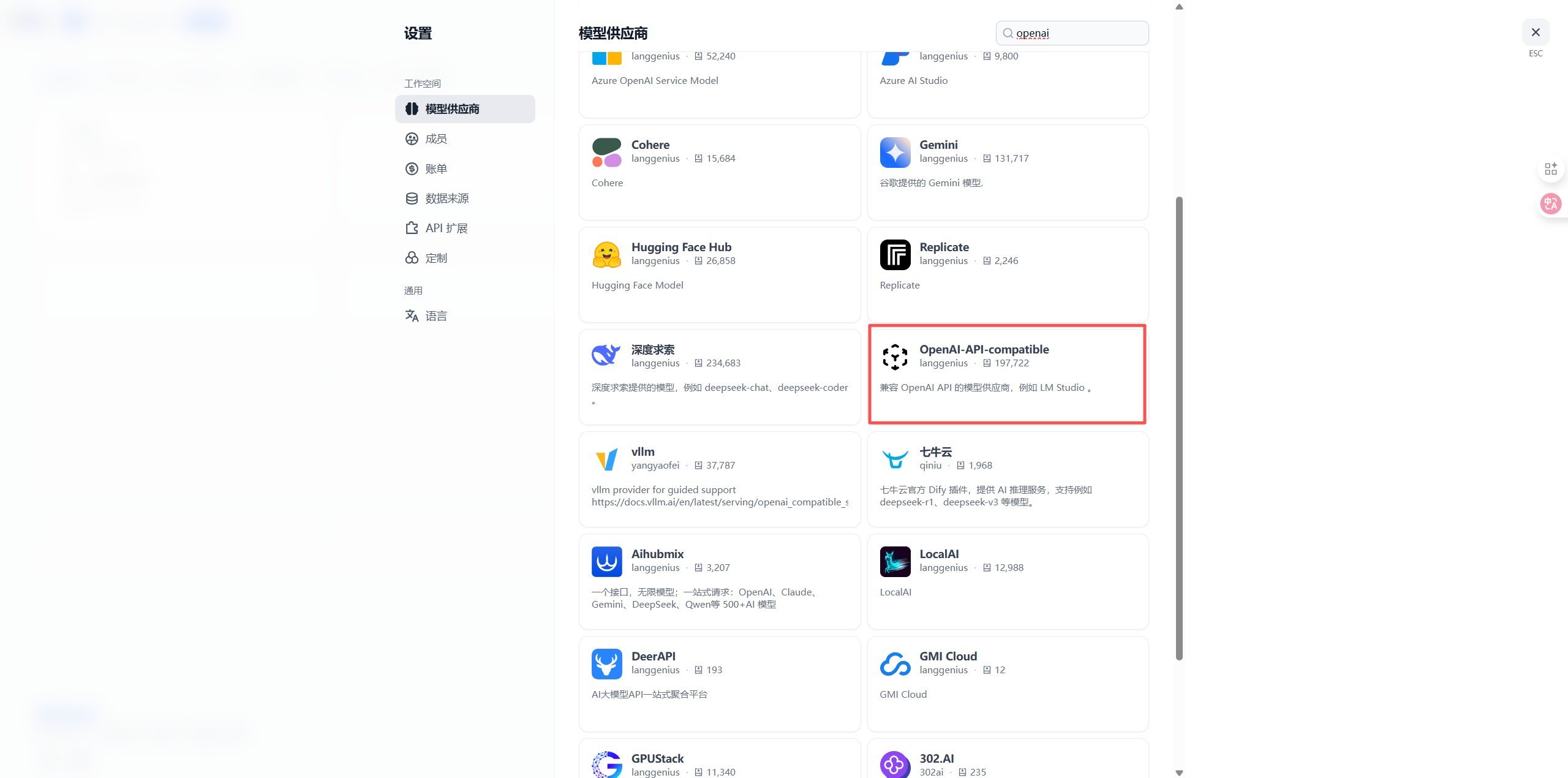
2. Add an OpenAI API-compatible model.
3. Enter the API endpoint, API key, and model ID.
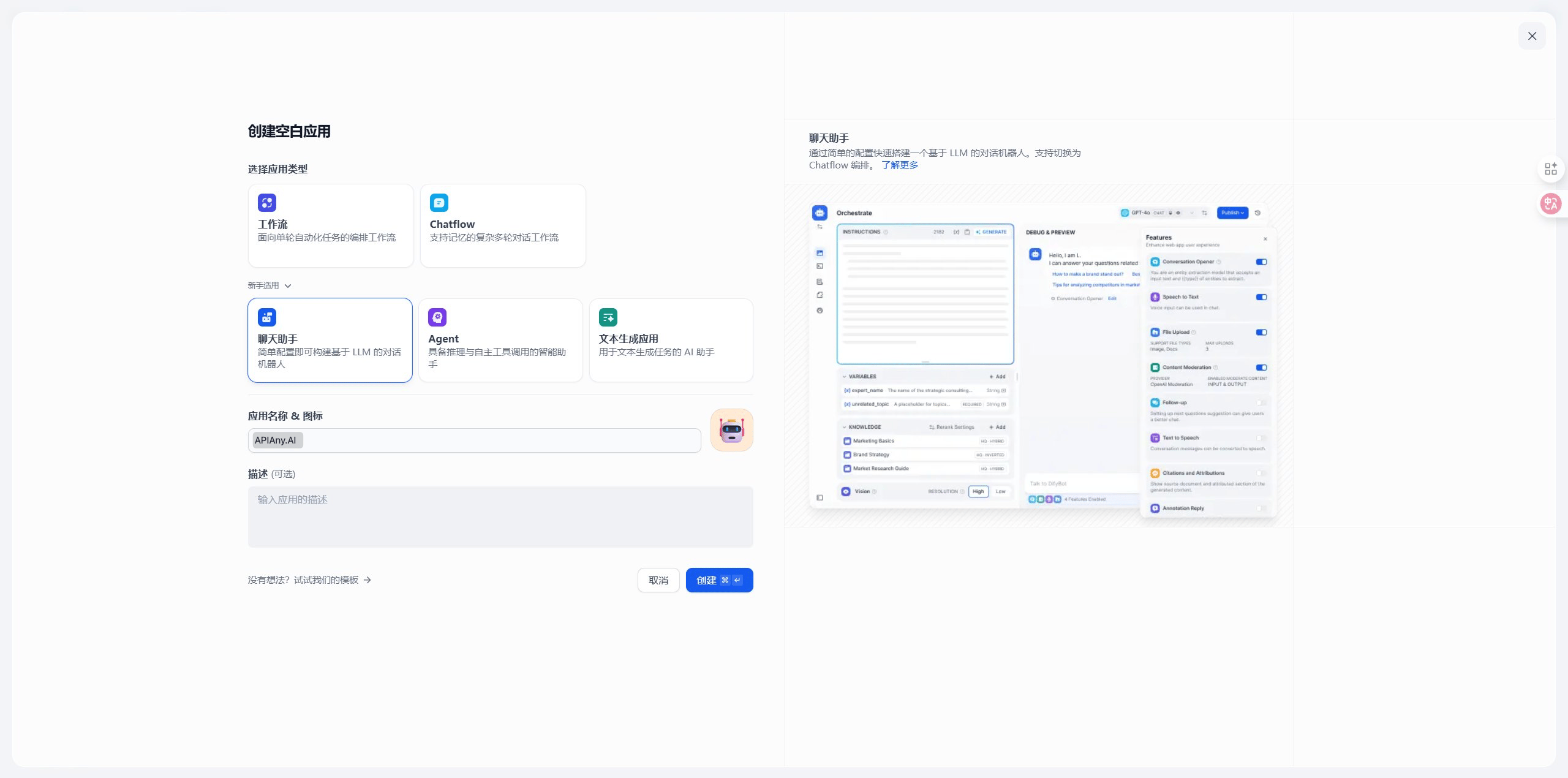
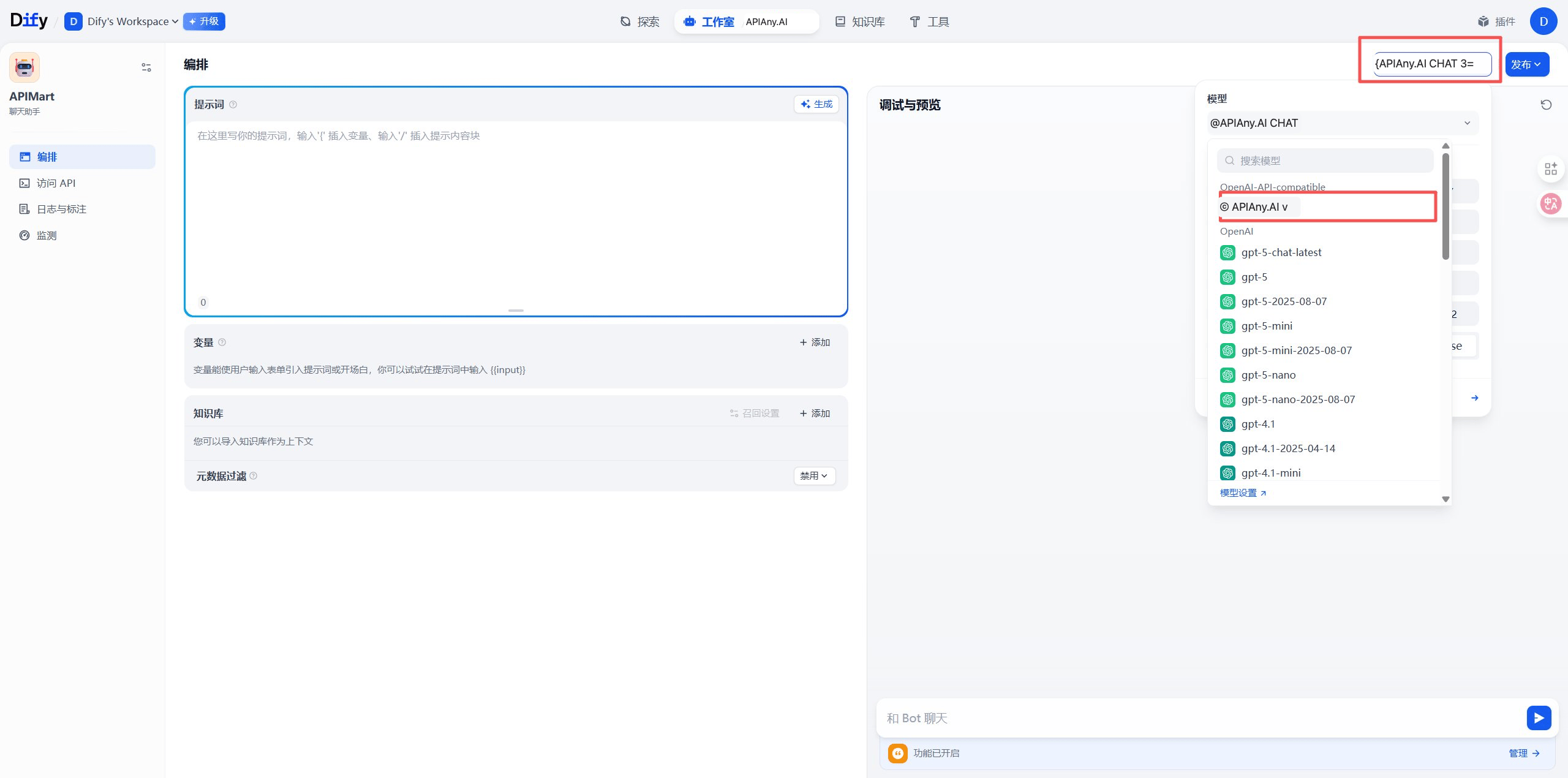
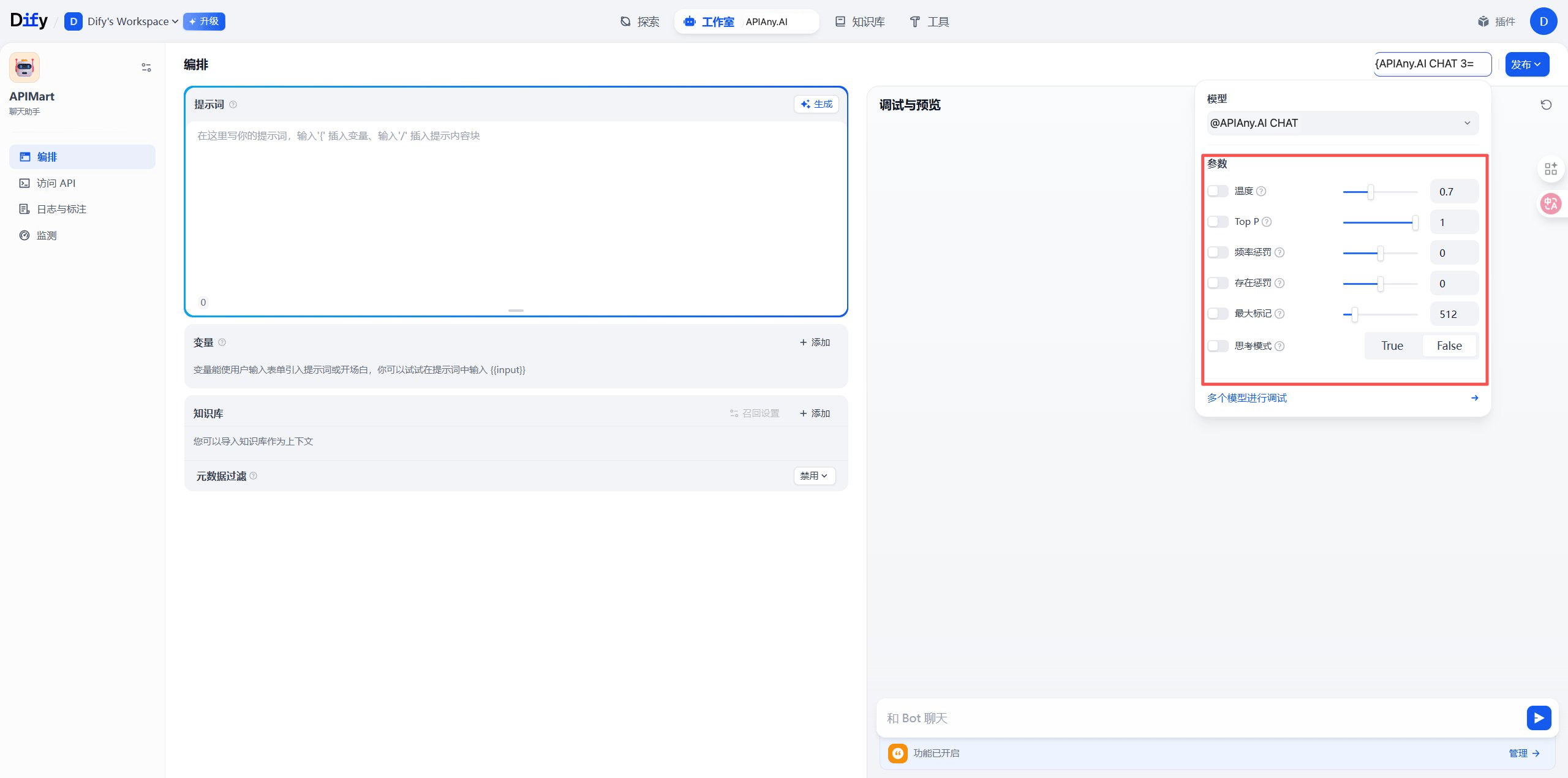
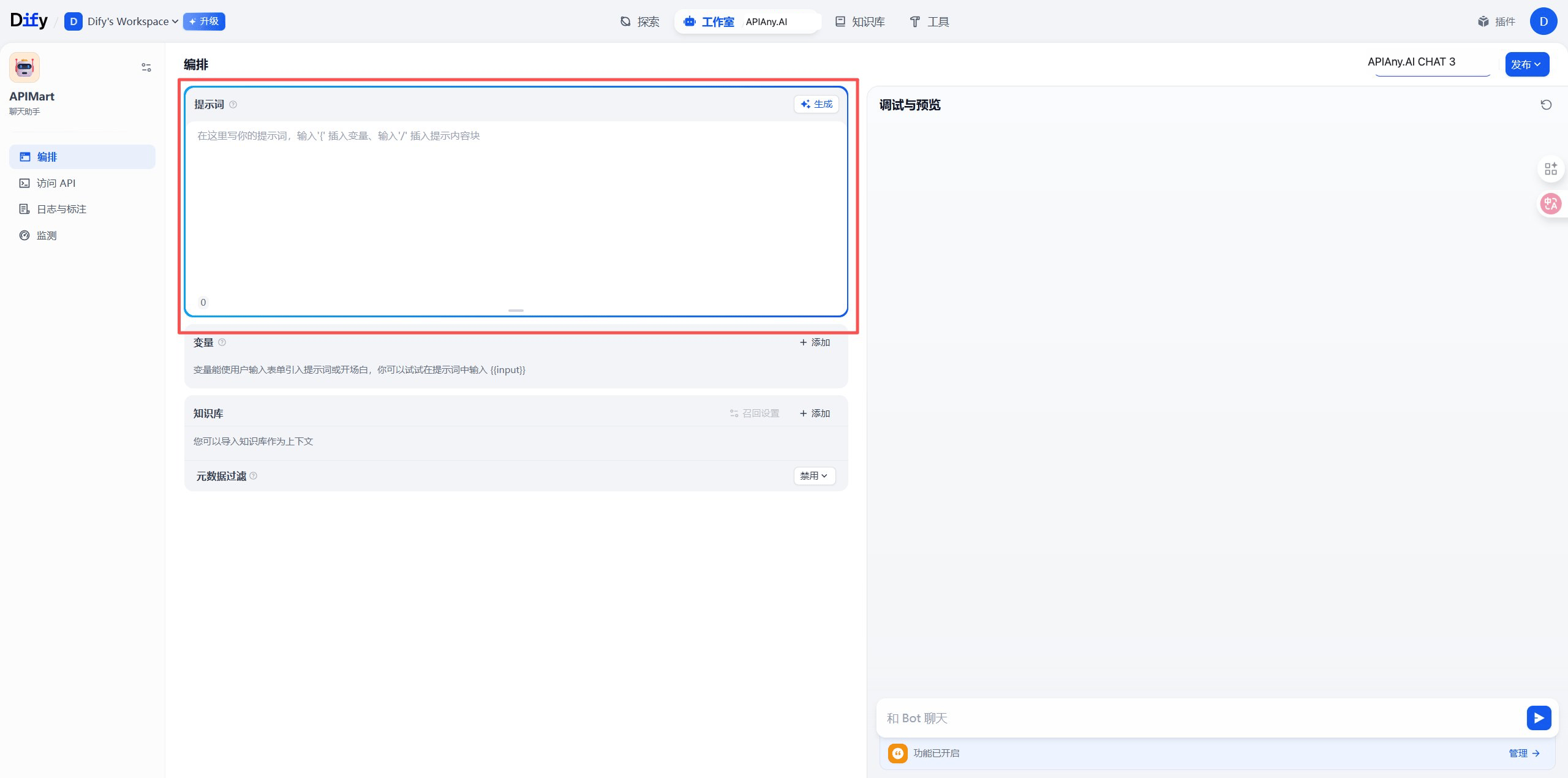
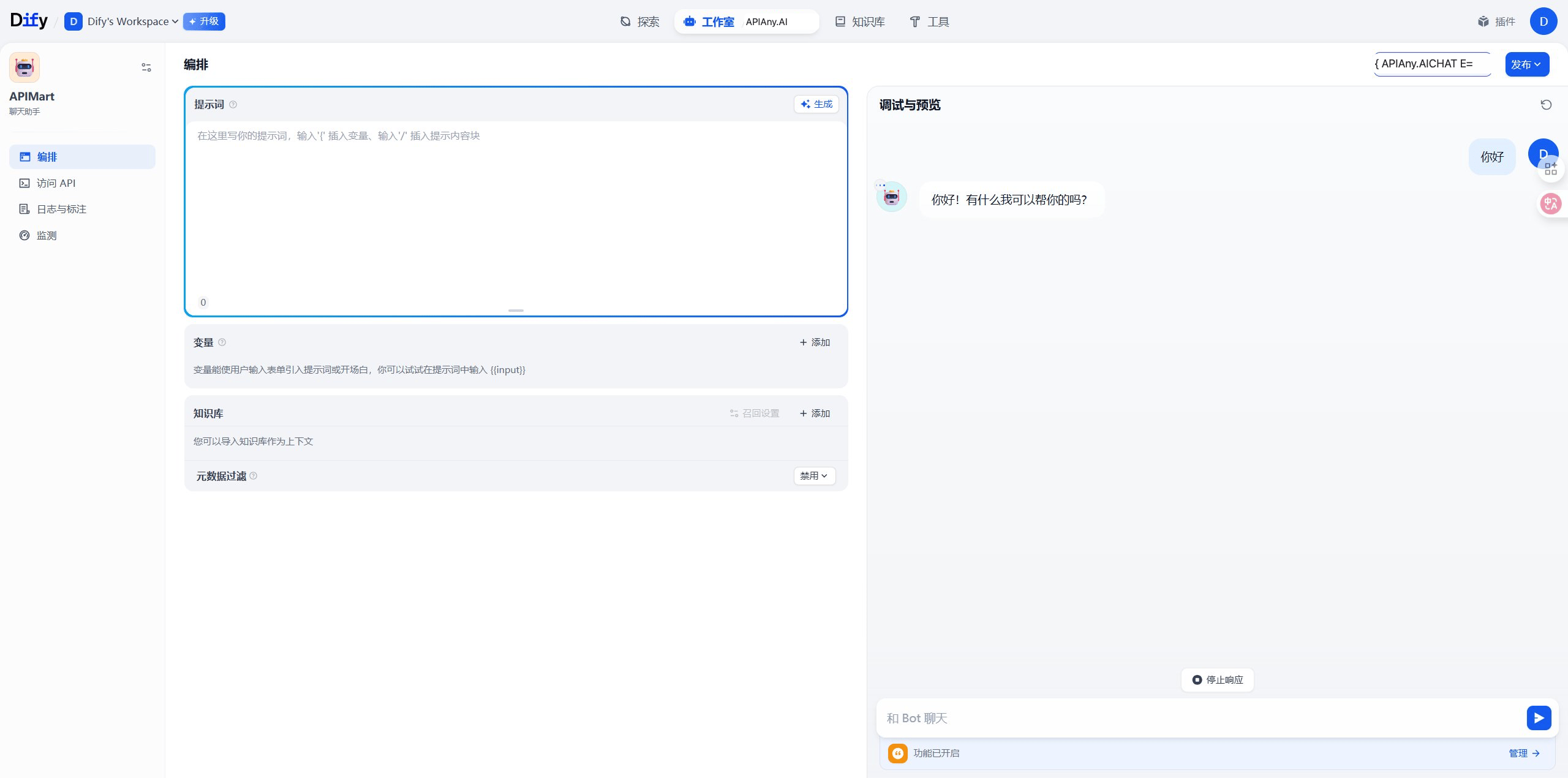
4. Create an app, select the model, and run a preview.

## Recommended models

| Model ID            | Best for                                                                        |
| ------------------- | ------------------------------------------------------------------------------- |
| `gpt-5.5`           | Best first choice for complex reasoning, coding, and production workflows.      |
| `gpt-5.4`           | Strong general-purpose model for advanced chat and agent tasks.                 |
| `gpt-5.4-mini`      | Balanced speed, quality, and cost for everyday usage.                           |
| `gpt-4o-mini`       | Fast and economical choice for simple chat, translation, and lightweight tasks. |
| `claude-sonnet-4-6` | Claude-compatible model ID for long-form writing and coding workflows.          |
| `gemini-3.5-flash`  | Gemini-compatible model ID for fast multimodal usage.                           |

## Walkthrough screenshots

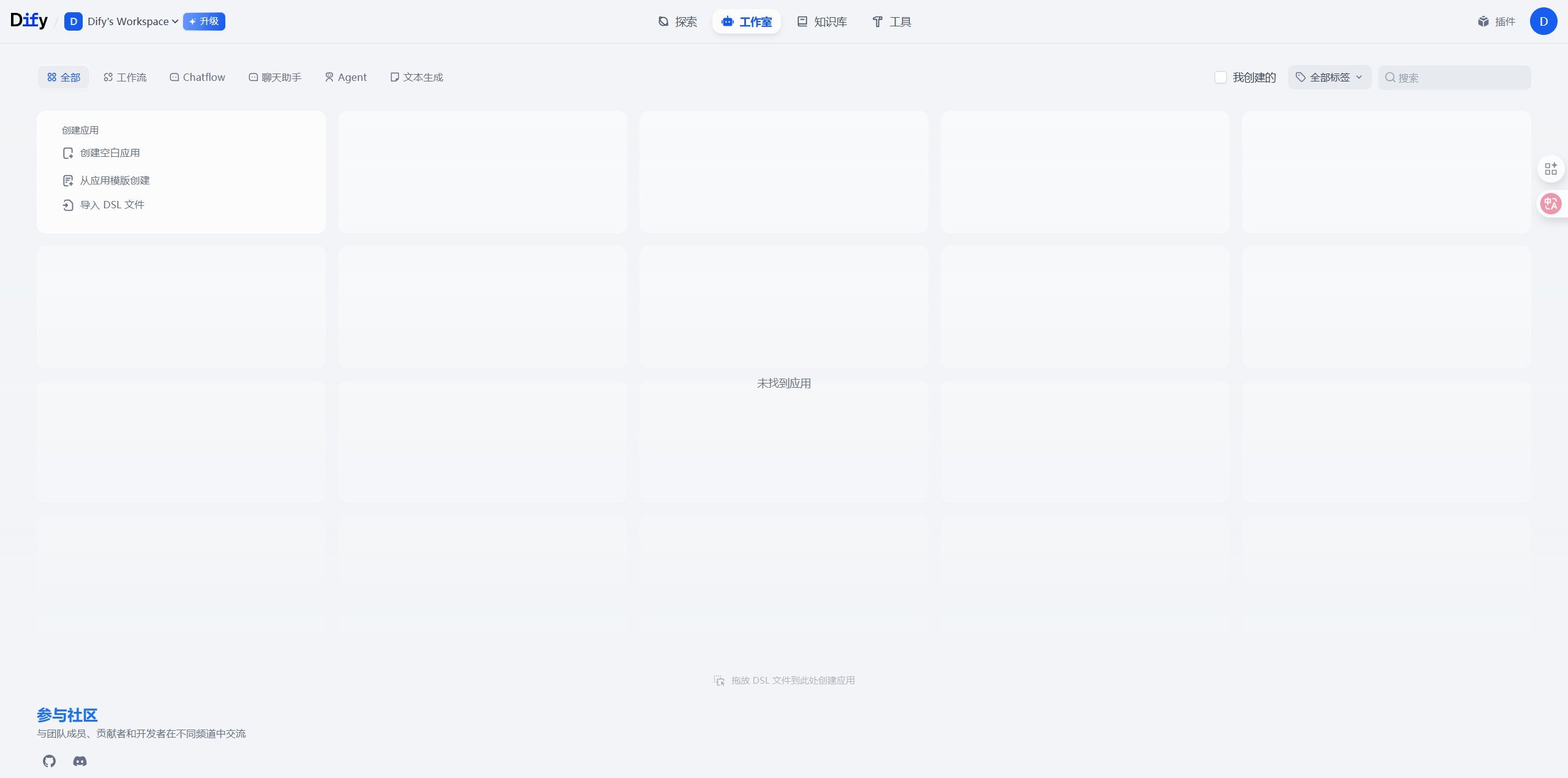
The screenshots below show the key configuration screens in Dify. API names and endpoints have been adjusted for APIAny.AI.

### Step 1
<img src="https://mintcdn.com/lingquai/Twqr-r52XykGBMod/images/integrations/dify/main-interface.png?fit=max&auto=format&n=Twqr-r52XykGBMod&q=85&s=3676d9c2db6f6f0b4adb3f09809cb65d" alt="Dify setup screenshot 1" width="2560" height="1270" data-path="images/integrations/dify/main-interface.png" />

### Step 2

<img src="https://mintcdn.com/lingquai/Twqr-r52XykGBMod/images/integrations/dify/model-provider-menu.png?fit=max&auto=format&n=Twqr-r52XykGBMod&q=85&s=19eac28459d7284995b5d79ef96a51b9" alt="Dify setup screenshot 2" width="2560" height="1270" data-path="images/integrations/dify/model-provider-menu.png" />

### Step 3

<img src="https://mintcdn.com/lingquai/Twqr-r52XykGBMod/images/integrations/dify/openai-custom-api.png?fit=max&auto=format&n=Twqr-r52XykGBMod&q=85&s=aa90e9be6a3eeba69a9da3d8d5266757" alt="Dify setup screenshot 3" width="2560" height="1270" data-path="images/integrations/dify/openai-custom-api.png" />

### Step 4

<img src="https://mintcdn.com/lingquai/Twqr-r52XykGBMod/images/integrations/dify/openai-custom-setting.png?fit=max&auto=format&n=Twqr-r52XykGBMod&q=85&s=d2176c70092360b9af47d1a356e584bf" alt="Dify setup screenshot 4" width="2560" height="1270" data-path="images/integrations/dify/openai-custom-setting.png" />

### Step 5

<img src="https://mintcdn.com/lingquai/Twqr-r52XykGBMod/images/integrations/dify/openai-model-list.png?fit=max&auto=format&n=Twqr-r52XykGBMod&q=85&s=dda928b6b2aa003af4cbba41c3adfe91" alt="Dify setup screenshot 5" width="2560" height="1270" data-path="images/integrations/dify/openai-model-list.png" />

### Step 6

<img src="https://mintcdn.com/lingquai/Twqr-r52XykGBMod/images/integrations/dify/custom-model-section.png?fit=max&auto=format&n=Twqr-r52XykGBMod&q=85&s=d8619632233a45adbd843cd99b8ab1ce" alt="Dify setup screenshot 6" width="2560" height="1270" data-path="images/integrations/dify/custom-model-section.png" />

### Step 7

<img src="https://mintcdn.com/lingquai/Twqr-r52XykGBMod/images/integrations/dify/add-provider-dialog.png?fit=max&auto=format&n=Twqr-r52XykGBMod&q=85&s=03ee6d48a8acb5bffec264e8a9907544" alt="Dify setup screenshot 7" width="2560" height="1270" data-path="images/integrations/dify/add-provider-dialog.png" />

### Step 8

<img src="https://mintcdn.com/lingquai/Twqr-r52XykGBMod/images/integrations/dify/create-app.png?fit=max&auto=format&n=Twqr-r52XykGBMod&q=85&s=f03426e287fc6538f5899656f4df5274" alt="Dify setup screenshot 8" width="2560" height="1270" data-path="images/integrations/dify/create-app.png" />

### Step 9

<img src="https://mintcdn.com/lingquai/Twqr-r52XykGBMod/images/integrations/dify/model-selection.png?fit=max&auto=format&n=Twqr-r52XykGBMod&q=85&s=3814bf1fd1f3e32dc804586b3aa2c844" alt="Dify setup screenshot 9" width="2560" height="1270" data-path="images/integrations/dify/model-selection.png" />

### Step 10

<img src="https://mintcdn.com/lingquai/Twqr-r52XykGBMod/images/integrations/dify/model-parameters.png?fit=max&auto=format&n=Twqr-r52XykGBMod&q=85&s=0b0a71d9d300ce4efe44bec27fcefb06" alt="Dify setup screenshot 10" width="2560" height="1270" data-path="images/integrations/dify/model-parameters.png" />

### Step 11

<img src="https://mintcdn.com/lingquai/Twqr-r52XykGBMod/images/integrations/dify/prompt-editor.png?fit=max&auto=format&n=Twqr-r52XykGBMod&q=85&s=e654b459aadb92fa145b8324cc44c2fd" alt="Dify setup screenshot 11" width="2560" height="1270" data-path="images/integrations/dify/prompt-editor.png" />

### Step 12

<img src="https://mintcdn.com/lingquai/Twqr-r52XykGBMod/images/integrations/dify/app-preview.png?fit=max&auto=format&n=Twqr-r52XykGBMod&q=85&s=5592a79edc0ea94c7916c10a78476e05" alt="Dify setup screenshot 12" width="2560" height="1270" data-path="images/integrations/dify/app-preview.png" />

### Step 13

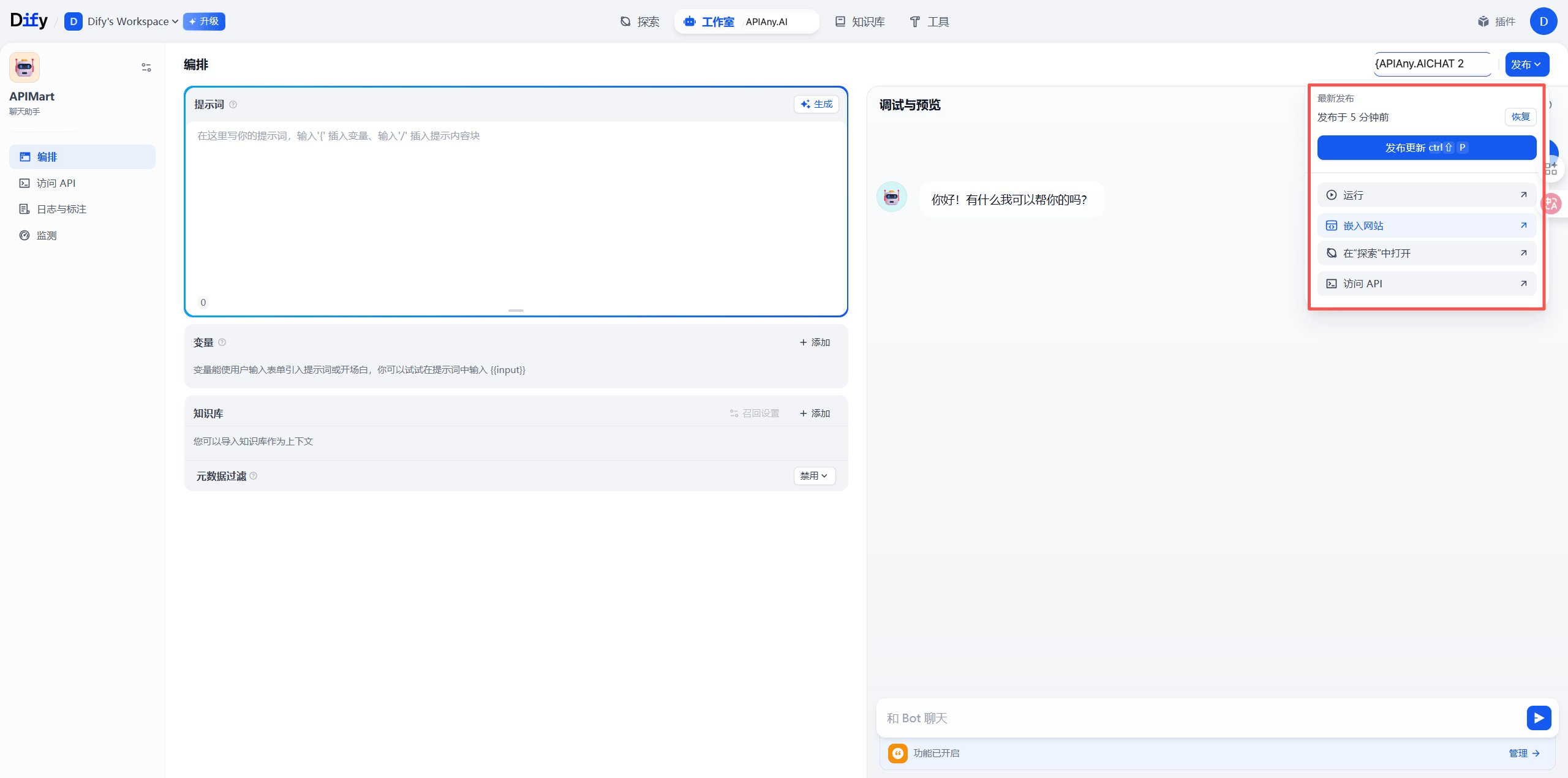
<img src="https://mintcdn.com/lingquai/Twqr-r52XykGBMod/images/integrations/dify/publish-options.png?fit=max&auto=format&n=Twqr-r52XykGBMod&q=85&s=aa7afdb6bd29a1069ad85e4021b16e78" alt="Dify setup screenshot 13" width="2560" height="1270" data-path="images/integrations/dify/publish-options.png" />

### Step 14

<img src="https://mintcdn.com/lingquai/Twqr-r52XykGBMod/images/integrations/dify/app-logs.png?fit=max&auto=format&n=Twqr-r52XykGBMod&q=85&s=2130323a0e4b10b4247970e75e0c550a" alt="Dify setup screenshot 14" width="2560" height="1270" data-path="images/integrations/dify/app-logs.png" />

## Troubleshooting

### 401 or authentication errors

Make sure the API key is copied completely, has no extra spaces, and is enabled in the APIAny.AI dashboard.

### The model does not appear in the app

Enter the model ID manually and confirm it is available in the [model catalog](/models/chat-models). Some tools do not fetch model lists automatically.

### Which Base URL should I use?

OpenAI-compatible settings usually use `https://apiany.ai/v1`; Claude-compatible settings usually use `https://apiany.ai`; tools that ask for a full endpoint use `https://apiany.ai/v1/chat/completions`.