> ## Documentation Index
> Fetch the complete documentation index at: https://docs.apiany.ai/llms.txt
> Use this file to discover all available pages before exploring further.
# Using in Immersive Translate
> Configure APIAny.AI API keys, base URLs, and recommended models in Immersive Translate.
[Immersive Translate](https://immersivetranslate.com/) can connect to APIAny.AI through OpenAI-compatible settings. After setup, you can use chat, reasoning, translation, and multimodal models from the same client.
## Prerequisites
* Immersive Translate is installed.
* You have created an API key in the [APIAny.AI dashboard](https://apiany.ai/dashboard/api-keys).
* You have selected a model ID, such as `gpt-5.4-mini` or `gpt-4o-mini`.
## Configuration values
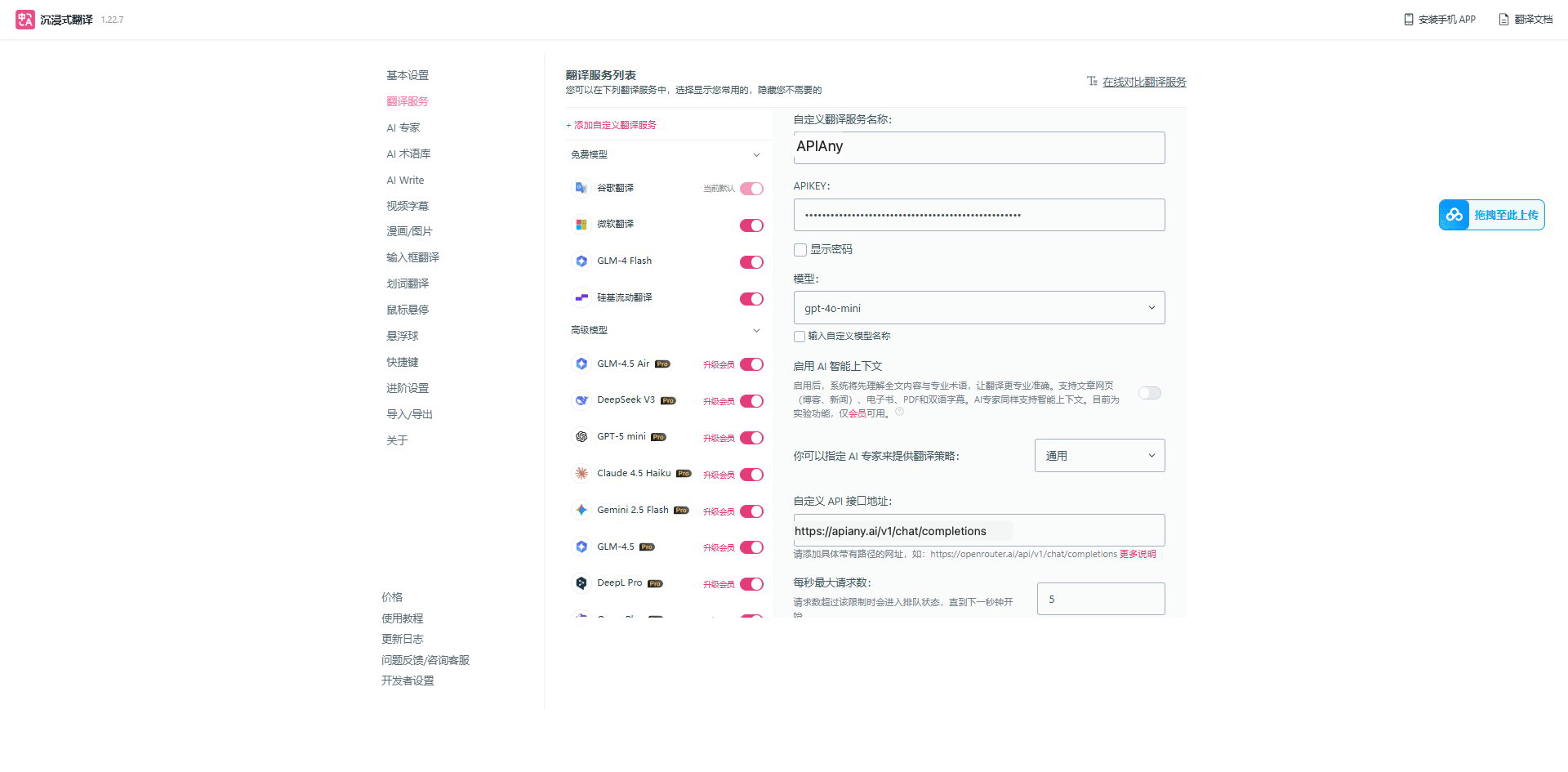
| Field | Value |
| ------------------- | --------------------------------------- |
| Service name | `APIAny.AI` |
| APIKEY | Your APIAny.AI API key |
| Custom API endpoint | `https://apiany.ai/v1/chat/completions` |
| Model | `gpt-4o-mini` or `gpt-5.4-mini` |
## Setup
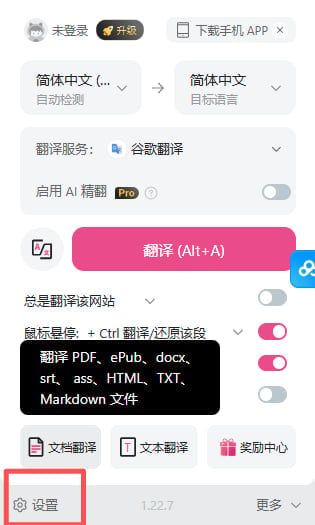
1. Open Immersive Translate extension settings.
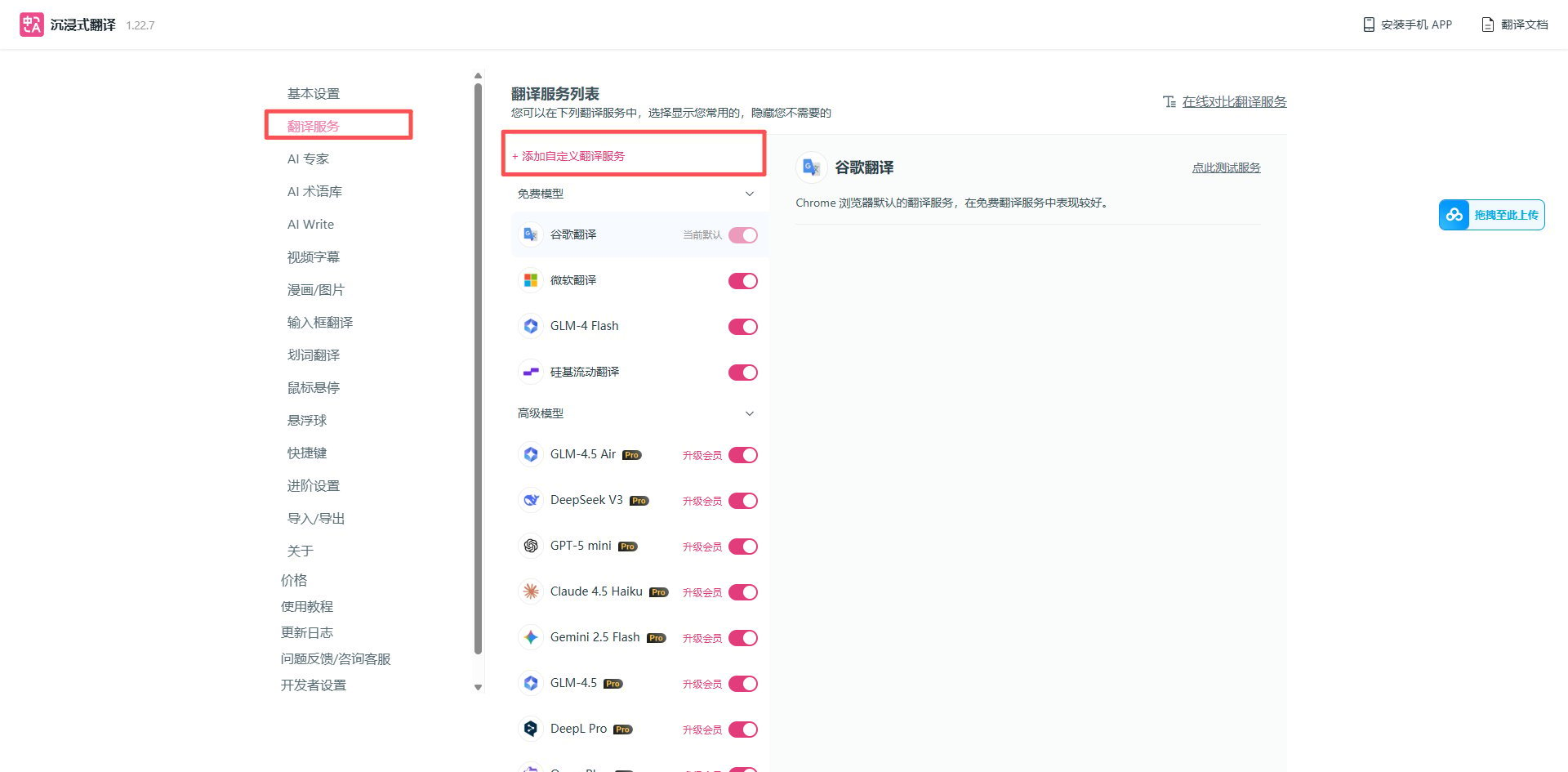
2. Go to translation services and add a custom OpenAI-compatible service.
3. Enter the service name, APIKEY, full endpoint, and model.
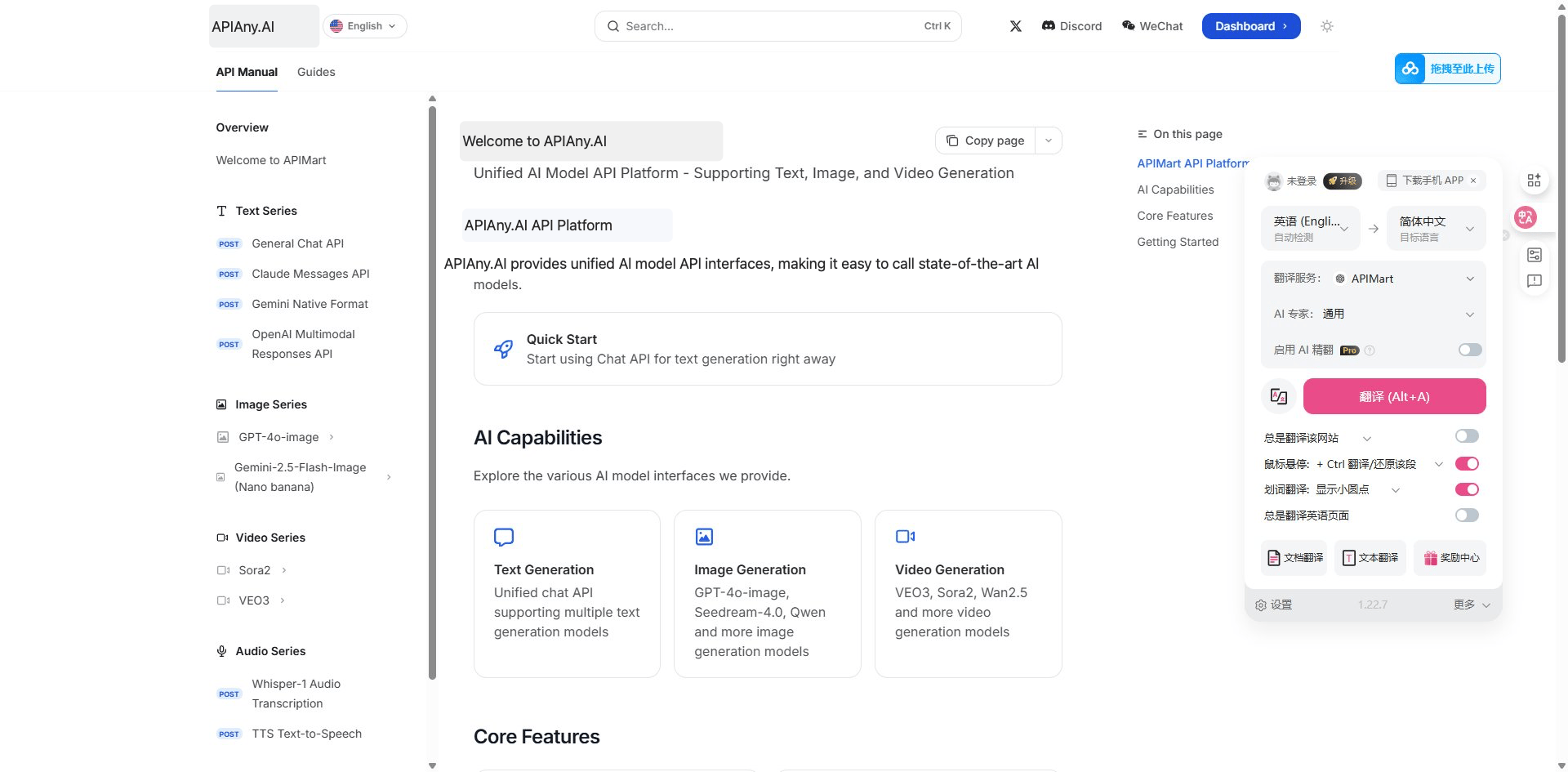
4. Save, return to the extension panel, and select APIAny.AI to start translating.
## Recommended models
| Model ID | Best for |
| ------------------- | ------------------------------------------------------------------------------- |
| `gpt-5.5` | Best first choice for complex reasoning, coding, and production workflows. |
| `gpt-5.4` | Strong general-purpose model for advanced chat and agent tasks. |
| `gpt-5.4-mini` | Balanced speed, quality, and cost for everyday usage. |
| `gpt-4o-mini` | Fast and economical choice for simple chat, translation, and lightweight tasks. |
| `claude-sonnet-4-6` | Claude-compatible model ID for long-form writing and coding workflows. |
| `gemini-3.5-flash` | Gemini-compatible model ID for fast multimodal usage. |
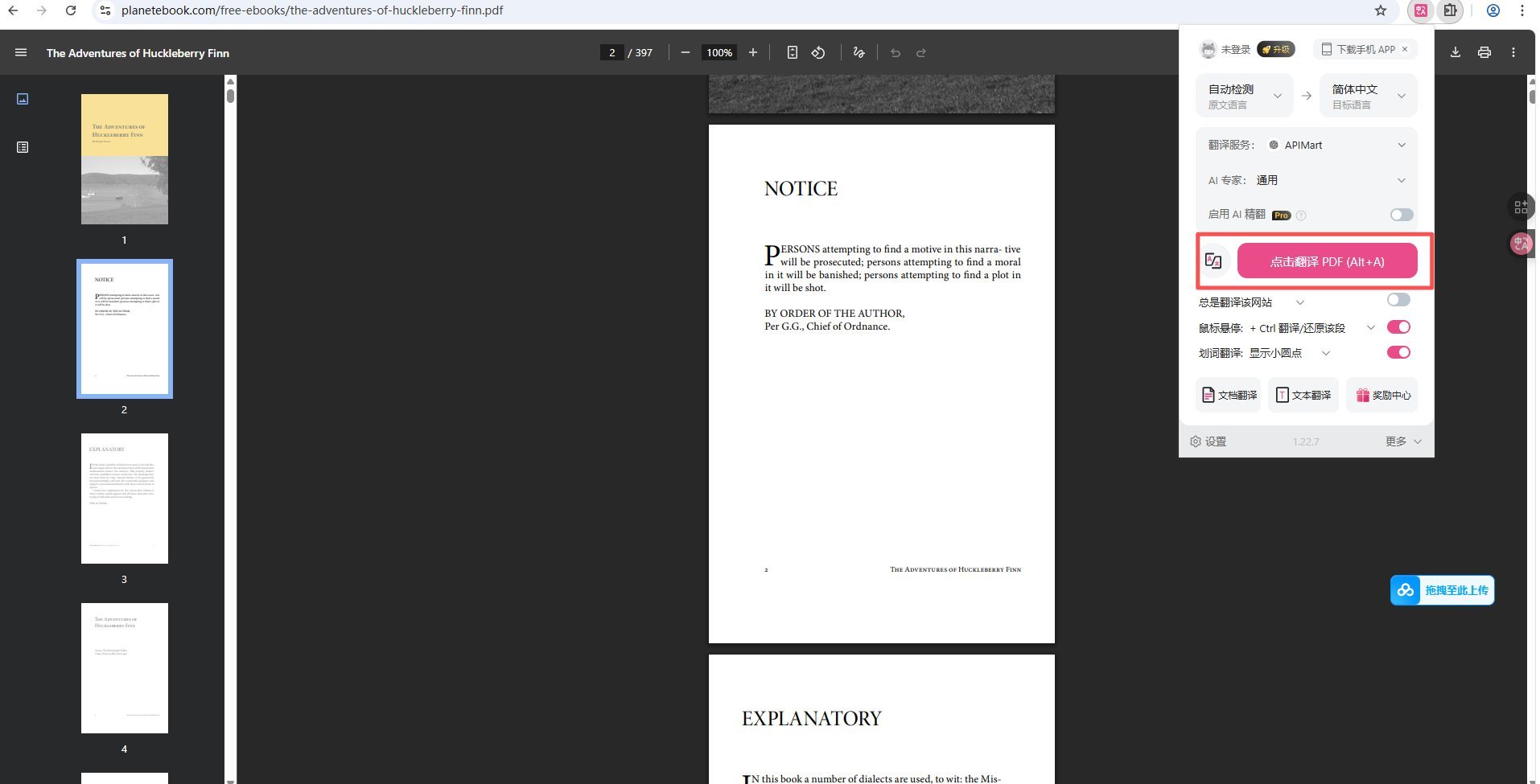
## Walkthrough screenshots
The screenshots below show the key configuration screens in Immersive Translate. API names and endpoints have been adjusted for APIAny.AI.
### Step 1
 ### Step 2
 ### Step 3
 ### Step 4
 ### Step 5
 ## Troubleshooting
### 401 or authentication errors
Make sure the API key is copied completely, has no extra spaces, and is enabled in the APIAny.AI dashboard.
### The model does not appear in the app
Enter the model ID manually and confirm it is available in the [model catalog](/models/chat-models). Some tools do not fetch model lists automatically.
### Which Base URL should I use?
OpenAI-compatible settings usually use `https://apiany.ai/v1`; Claude-compatible settings usually use `https://apiany.ai`; tools that ask for a full endpoint use `https://apiany.ai/v1/chat/completions`.
## Troubleshooting
### 401 or authentication errors
Make sure the API key is copied completely, has no extra spaces, and is enabled in the APIAny.AI dashboard.
### The model does not appear in the app
Enter the model ID manually and confirm it is available in the [model catalog](/models/chat-models). Some tools do not fetch model lists automatically.
### Which Base URL should I use?
OpenAI-compatible settings usually use `https://apiany.ai/v1`; Claude-compatible settings usually use `https://apiany.ai`; tools that ask for a full endpoint use `https://apiany.ai/v1/chat/completions`.