> ## Documentation Index
> Fetch the complete documentation index at: https://docs.apiany.ai/llms.txt
> Use this file to discover all available pages before exploring further.
# AnythingLLM 연동
> AnythingLLM에서 APIAny.AI API Key, Base URL 및 권장 모델을 설정합니다.
[AnythingLLM](https://anythingllm.com/)은 OpenAI 호환 설정을 통해 APIAny.AI에 연결할 수 있습니다. 설정을 마치면 동일한 클라이언트에서 대화, 추론, 번역, 멀티모달 모델을 사용할 수 있습니다.
## 준비 사항
* AnythingLLM이 설치되어 있어야 합니다.
* [APIAny.AI 대시보드](https://apiany.ai/ko/dashboard/api-keys)에서 API Key를 생성해야 합니다.
* 사용할 모델 ID를 준비합니다. 예: `gpt-5.4-mini` 또는 `gpt-4o-mini`.
## 설정 값
| 필드 | 입력 내용 |
| -------- | ---------------------- |
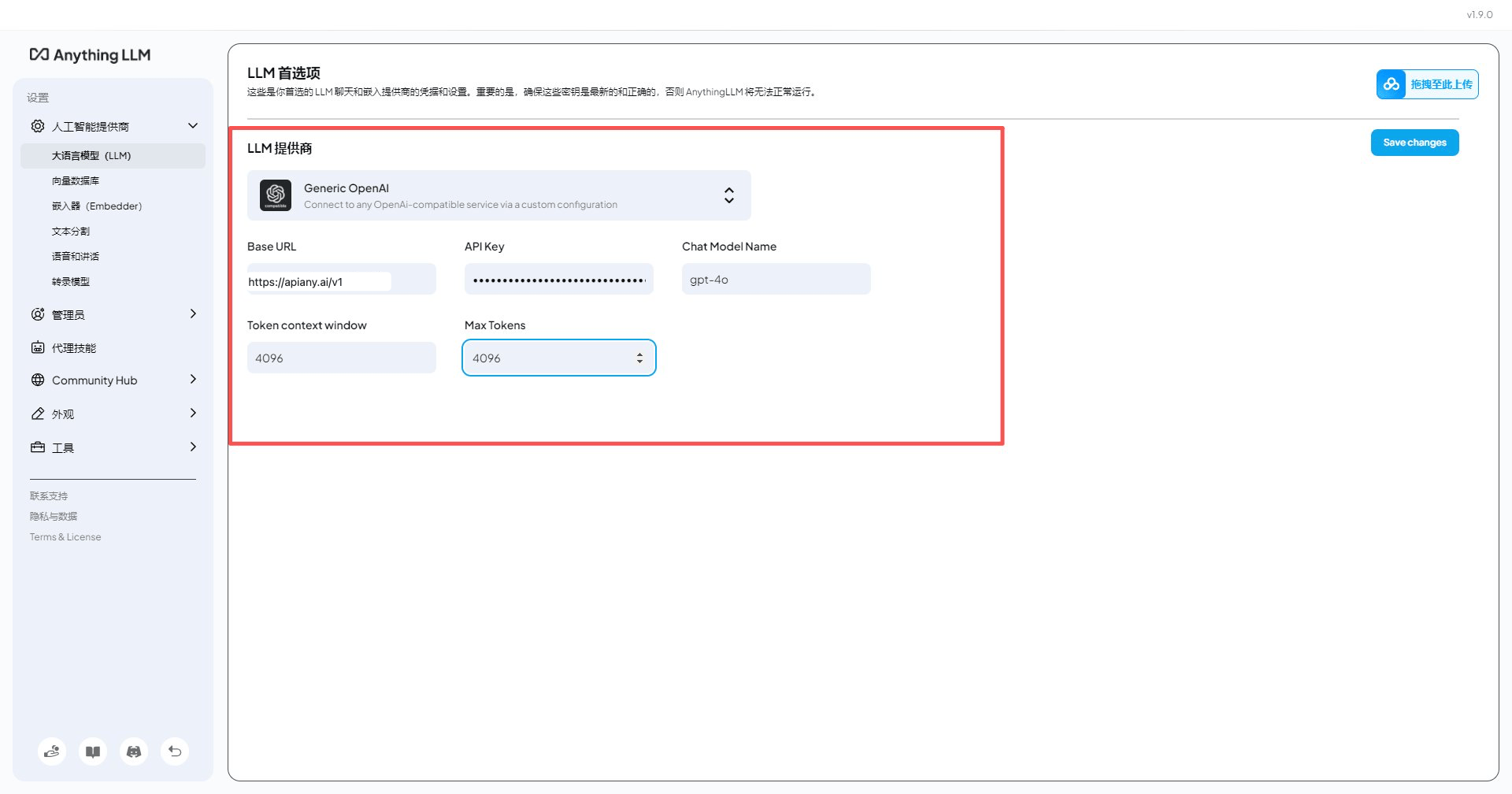
| LLM mode | `Generic OpenAI` |
| Base URL | `https://apiany.ai/v1` |
| API Key | 사용자의 APIAny.AI API Key |
| 채팅 모델 | `gpt-5.4-mini` |
## 설정 단계
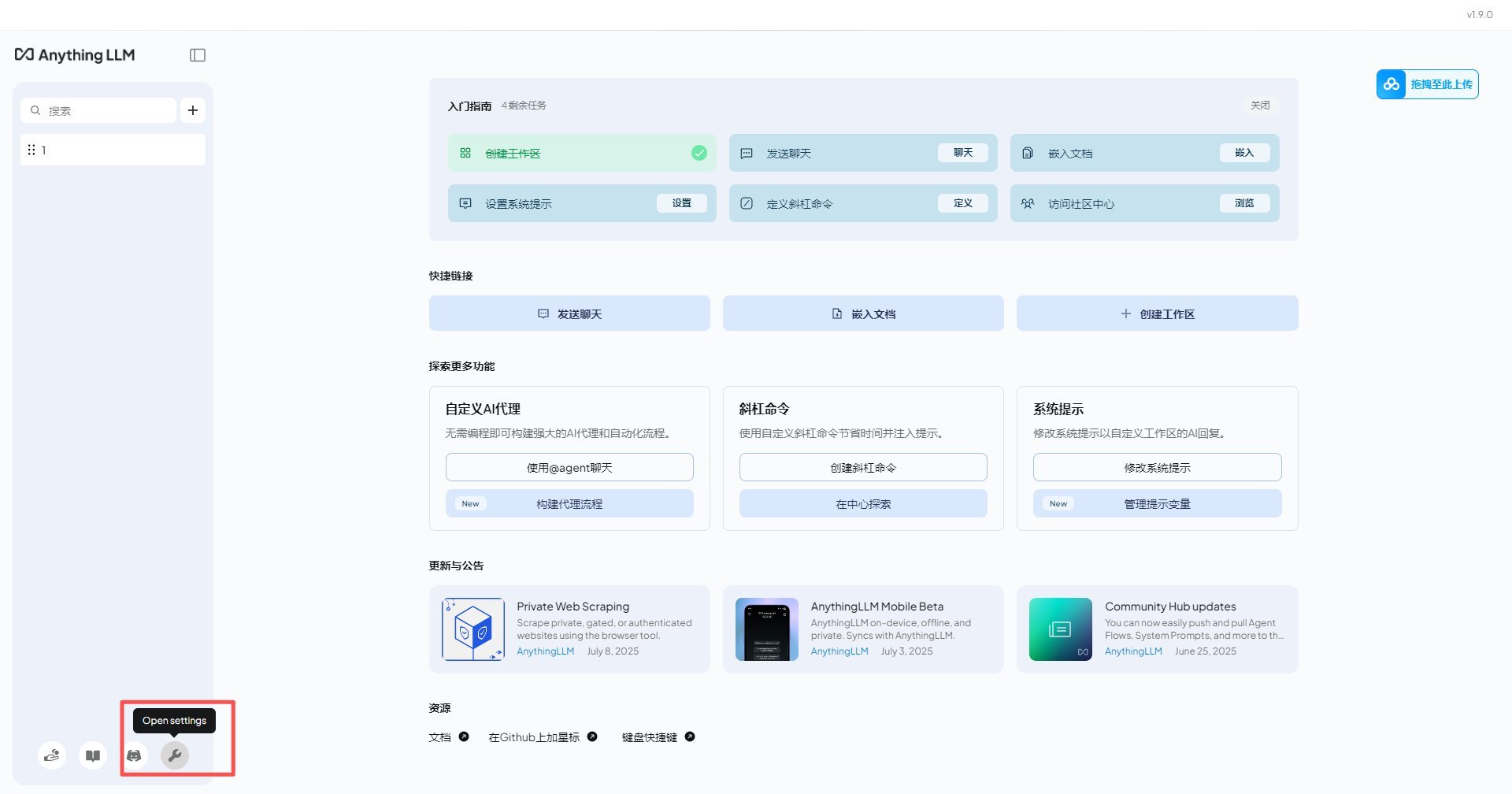
1. 워크스페이스 설정을 열고 LLM 설정으로 이동합니다.
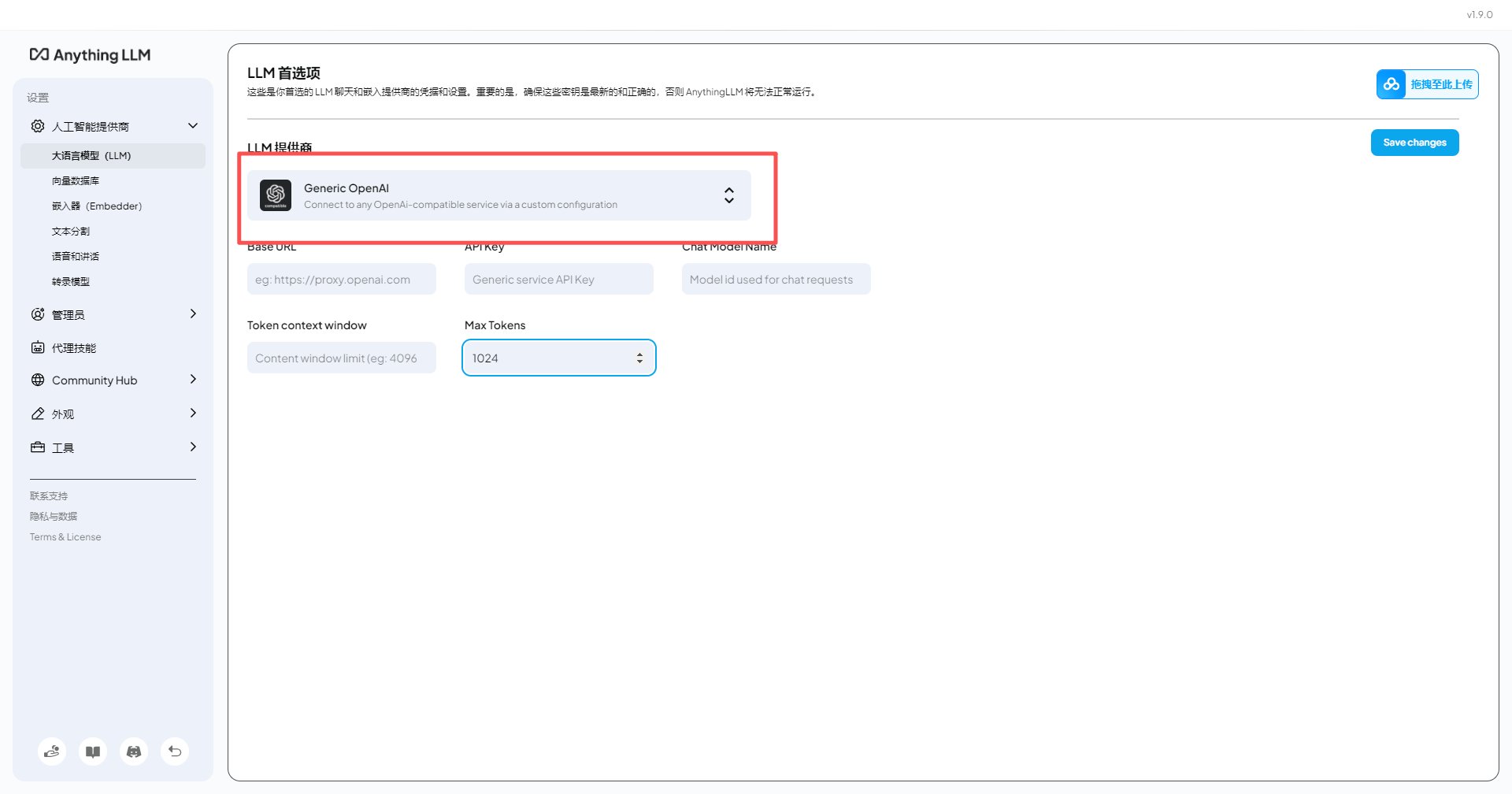
2. Generic OpenAI를 선택합니다.
3. Base URL, API Key, 모델 이름, 컨텍스트 길이를 입력합니다.
4. 저장한 후 워크스페이스에서 테스트 대화를 실행합니다.
## 권장 모델
| 모델 ID | 적합한 용도 |
| ------------------- | ---------------------------------------- |
| `gpt-5.5` | 복잡한 추론, 코딩, 프로덕션 워크플로에 가장 적합하며 우선 추천합니다. |
| `gpt-5.4` | 고급 대화와 에이전트 작업에 강력한 범용 모델입니다. |
| `gpt-5.4-mini` | 속도, 품질, 비용이 균형 잡혀 일상적인 사용에 적합합니다. |
| `gpt-4o-mini` | 간단한 대화, 번역, 가벼운 작업에 빠르고 경제적인 선택입니다. |
| `claude-sonnet-4-6` | 장문 작성과 코딩 워크플로를 위한 Claude 호환 모델 ID입니다. |
| `gemini-3.5-flash` | 빠른 멀티모달 사용을 위한 Gemini 호환 모델 ID입니다. |
## 단계별 스크린샷
아래 스크린샷은 AnythingLLM의 주요 설정 화면을 보여줍니다. 스크린샷의 API 이름과 엔드포인트는 APIAny.AI에 맞게 조정되었습니다.
### 단계 1
 ### 단계 2
 ### 단계 3
 ## 문제 해결
### 401 또는 인증 오류
API Key가 완전하게 복사되었는지, 앞뒤에 불필요한 공백이 없는지, APIAny.AI 대시보드에서 활성화되어 있는지 확인하세요.
### 앱에 모델이 표시되지 않음
모델 ID를 직접 입력하고 [모델 카탈로그](/ko/models/chat-models)에서 사용 가능한지 확인하세요. 일부 도구는 모델 목록을 자동으로 가져오지 않습니다.
### 어떤 Base URL을 사용해야 하나요?
OpenAI 호환 설정은 일반적으로 `https://apiany.ai/v1`을 사용하고, Claude 호환 설정은 일반적으로 `https://apiany.ai`를 사용하며, 전체 엔드포인트를 요구하는 도구는 `https://apiany.ai/v1/chat/completions`를 사용합니다.
## 문제 해결
### 401 또는 인증 오류
API Key가 완전하게 복사되었는지, 앞뒤에 불필요한 공백이 없는지, APIAny.AI 대시보드에서 활성화되어 있는지 확인하세요.
### 앱에 모델이 표시되지 않음
모델 ID를 직접 입력하고 [모델 카탈로그](/ko/models/chat-models)에서 사용 가능한지 확인하세요. 일부 도구는 모델 목록을 자동으로 가져오지 않습니다.
### 어떤 Base URL을 사용해야 하나요?
OpenAI 호환 설정은 일반적으로 `https://apiany.ai/v1`을 사용하고, Claude 호환 설정은 일반적으로 `https://apiany.ai`를 사용하며, 전체 엔드포인트를 요구하는 도구는 `https://apiany.ai/v1/chat/completions`를 사용합니다.